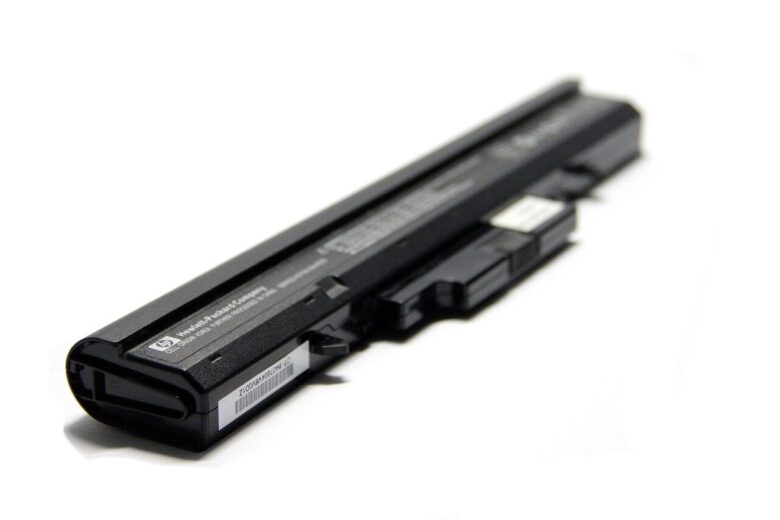
Replace a laptop battery when it no longer provides useful runtime, causes unexpected shutdowns, works only while plugged in or receives a service warning. Short runtime alone is not proof of battery failure, because background programs, screen brightness, updates and demanding workloads can also increase power use.
A raised trackpad, separated case, uneven keyboard or bulging bottom panel may indicate battery swelling. Turn the laptop off, disconnect the charger when safe and do not press, bend, puncture or attempt to force the battery out. If the laptop is smoking, hissing or rapidly becoming very hot, move away from it and contact local emergency services if there is a fire risk.
Laptop batteries gradually lose the ability to hold their original charge. That is normal for rechargeable lithium-ion batteries, but the speed of deterioration varies according to age, heat, charging habits, workload and the design of the laptop.
Replacement becomes worth considering when reduced runtime interferes with daily use, the system reports a battery health problem or the battery can no longer deliver power reliably.
Six Signs Your Laptop Battery May Be Wearing Out
Much shorter runtime
A laptop that once lasted several hours now needs charging frequently during the same type of use.
Unexpected shutdowns
The laptop turns off while the battery indicator still shows a meaningful remaining percentage.
Only works when plugged in
The laptop shuts down immediately or soon after the charger is disconnected.
Battery health warning
Windows, macOS or the manufacturer’s diagnostic tool reports reduced health or recommends service.
Charging behaves strangely
The percentage remains stuck, changes suddenly or never reaches the expected charge level.
Physical deformation
The case no longer closes correctly, the trackpad lifts or the battery area appears swollen.
A Practical Diagnosis Before You Buy
Check in this order
- Inspect the case first. Do not continue testing if the battery area is swollen, damaged or unusually hot.
- Confirm that charging works. Connect the correct charger directly to a working wall outlet and check whether the charging indicator appears and the percentage rises.
- Restart the laptop. Allow operating-system updates and background installations to finish before judging runtime.
- Read the health information. Compare design capacity with current full charge capacity, and check any service status or manufacturer diagnostic result.
- Repeat a familiar unplugged task. Keep brightness and workload similar so the result can be compared with normal use rather than an unusually demanding session.
If the battery percentage does not rise even while the laptop is shut down, the problem may involve the charger, charging port, internal power connection or battery. Use the manufacturer’s diagnostic tool and, if available, test only with a known-compatible charger of the correct wattage. Do not order a battery solely because the laptop says it is plugged in but not charging.
What Battery Health Numbers Actually Mean
Battery health is easier to understand when you compare several measurements instead of looking only at the percentage displayed beside the battery icon.
The amount of energy the battery was designed to hold when new.
The estimated amount of energy the battery can currently hold when fully charged.
The accumulated use of 100% of the battery’s capacity. Several partial discharges can together equal one cycle.
How long the laptop lasts during your normal work, browsing, calls or other regular activities.
This calculation is an estimate, not a universal pass-or-fail test. Battery reporting can vary by manufacturer, and the full charge estimate may move slightly after updates, temperature changes or different charging patterns. Look for a continuing trend and compare it with real runtime instead of making a decision from one reading.
| What you observe | What it may mean | Best next step |
|---|---|---|
| Capacity is lower, but runtime is still useful | Normal battery aging | Continue monitoring |
| Runtime is inconvenient during normal tasks | Battery wear may now affect daily use | Compare replacement options |
| Laptop shuts down at 20%–40% | Battery reporting, firmware or cell-wear problem | Run diagnostics and back up important files |
| Battery is not detected or will not charge | Battery, charger, port, firmware or internal connection issue | Use official diagnostics or qualified service |
| Case, keyboard or trackpad is lifting | Possible swollen battery | Stop using the laptop |
How to Check Battery Health in Windows 11
Generate the Windows battery report
Windows 11 can create an HTML report containing installed-battery details, recent use, estimated capacity and battery-life history.
- Open the Start menu.
- Type Command Prompt and open it. If the command is denied, reopen it with Run as administrator.
- Enter the command shown below and press Enter.
- Open File Explorer, paste
%USERPROFILE%\battery-report.htmlinto the address bar and press Enter.
Sections worth checking
- Installed batteries: Shows the battery name, design capacity and full charge capacity.
- Recent usage: Shows whether the laptop was running on battery or connected power.
- Battery usage: Shows recent discharge activity.
- Battery capacity history: Helps reveal how estimated capacity changed over time.
- Battery life estimates: Compares recent estimated runtime with design-based estimates.
Some laptops do not expose every measurement to Windows. A missing cycle count, a dash or an empty field does not by itself prove that the battery is faulty. Use the manufacturer’s diagnostic application if the Windows report lacks useful data.
How to Check Battery Health on a MacBook
Review Battery Health in macOS
- Open the Apple menu.
- Select System Settings.
- Choose Battery.
- Open Battery Health or select the information button beside it, depending on the macOS version.
A status of Normal means macOS considers the battery to be functioning normally. Service Recommended means its ability to hold a charge is lower than when new or the battery is not operating normally.
How to find the cycle count
- Hold the Option key and open the Apple menu.
- Select System Information.
- Under Hardware, select Power.
- Find the current cycle count in the battery information section.
Maximum cycle counts vary by MacBook model. Apple publishes model-specific limits, so compare your result with the official specifications for your exact Mac.
Is 80% Battery Health an Automatic Replacement Point?
Not necessarily.
Apple states that a normal Mac battery is designed to retain up to 80% of its original capacity at its maximum cycle count under normal conditions. However, that does not make 80% a universal replacement rule for every Windows laptop and every user.
Your practical decision should also consider:
- Whether the remaining runtime meets your daily needs
- Whether the laptop shuts down unexpectedly
- Whether the battery charges consistently
- Whether a service warning is displayed
- The cost and availability of a compatible battery
- The condition and age of the rest of the laptop
- Whether there is any swelling or physical damage
Could Something Else Be Draining the Battery?
Before ordering a replacement, test whether the drain is caused mainly by software, settings, sleep behavior or workload.
| Possible cause | What to check | Simple test |
|---|---|---|
| High screen brightness | Display brightness and keyboard lighting | Lower brightness and compare runtime |
| Background applications | Task Manager or Activity Monitor | Close unnecessary high-usage applications |
| Video calls, gaming or editing | CPU and graphics activity | Compare with light browsing or document work |
| External accessories | USB drives, hubs, displays and receivers | Disconnect nonessential devices |
| Recent system update | Temporary indexing or background installation | Restart and test after updates finish |
| Poor Wi-Fi signal | Weak or unstable network connection | Test closer to the router |
| High temperature | Blocked vents or demanding processes | Use the laptop on a hard, ventilated surface |
| Sleep or standby activity | Battery loss while the lid is closed | Compare sleep loss with a full shutdown over a similar period |
Run a repeatable unplugged test
- Charge the laptop to its normal maximum. If smart charging stops at 80%, keep that setting and record 80% as the starting point.
- Restart the laptop and let updates or startup activity settle.
- Set a fixed screen brightness and disconnect nonessential accessories.
- Record the time and starting percentage, then use the same familiar workload for 30–60 minutes.
- Record the ending percentage and note any sudden jumps, shutdowns, heat or unusually noisy fans.
- Repeat the test on another occasion before drawing a conclusion.
A steady decline during demanding work can be normal even with a healthy battery. A sudden percentage drop, shutdown with substantial charge remaining or consistently poor runtime during light work is more consistent with battery wear or inaccurate charge reporting.
Replace Now, Replace Soon or Keep Monitoring?
- Runtime still meets your needs
- No physical deformation
- No unexpected shutdowns
- Charging remains stable
- Runtime is no longer practical
- Health warning is displayed
- Capacity has dropped substantially
- Laptop must remain plugged in
- Battery or case is swollen
- Battery is punctured or damaged
- There is smoke or a burning smell
- The laptop becomes dangerously hot
What to Check Before Buying a Replacement Battery
Replacement checklist
- Confirm the exact laptop model and battery part number.
- Check whether the battery is internal or designed to be removable.
- Review the manufacturer’s service manual and warranty terms.
- Buy from the manufacturer or a reputable authorized supplier.
- Avoid batteries with unclear specifications or no warranty information.
- Verify voltage, connector, dimensions and listed compatibility.
- Do not assume that two batteries are compatible because they have the same shape.
- Ask whether installation requires removing delicate internal parts.
- Back up important files before repair if the laptop has been shutting down unexpectedly.
- Dispose of the old battery through an approved electronics or battery recycling service.
Should You Replace the Battery Yourself?
Older laptops may use batteries that can be released from the outside without opening the case. Many modern laptops have internal batteries that require the bottom cover to be removed.
A self-replacement may be reasonable only when:
- The manufacturer provides a service procedure for your exact model
- You have the correct tools and compatible replacement part
- The battery is not swollen, leaking or damaged
- You understand how to shut down, unplug and disconnect internal power safely
- The procedure will not create an unacceptable warranty risk
Professional service is the safer choice when the laptop is difficult to open, the battery is glued in place, delicate cables must be moved or physical swelling is present. Do not improvise with sharp or metal tools near a battery cell.
How to Slow Future Battery Wear
- Avoid using or charging the laptop in excessive heat.
- Keep ventilation openings clear while the laptop is operating.
- Use smart or optimized charging when the laptop supports it.
- Avoid frequent deep discharges when practical.
- Keep the battery within a moderate charge range during regular use when convenient.
- Use the correct charger recommended for the laptop.
- For long-term storage, follow the manufacturer’s charge and temperature guidance.
- Install firmware and system updates from trusted official sources.
Common Battery Myths
A cycle represents cumulative use equal to 100% of the battery’s capacity. Two separate 50% discharges may together count as one cycle.
High screen brightness, demanding applications, weak Wi-Fi and background activity may continue to consume power quickly.
Reduced capacity is different from physical damage. Swelling, punctures, smoke and excessive heat are the urgent safety signs.
The connector, voltage, dimensions, firmware communication and model compatibility must match the laptop.
A deep discharge cannot reverse lost chemical capacity. Calibration may sometimes improve the accuracy of the displayed percentage, but it should only be done when the manufacturer recommends a procedure for that model.
Frequently Asked Questions
Can I continue using a laptop with a weak battery?
You can usually continue using a battery that only has reduced capacity, provided it is not swollen, damaged or overheating. Replacement becomes useful when runtime and reliability no longer meet your needs.
Why does my laptop shut down at 30% battery?
The battery may no longer deliver stable power or the displayed percentage may be inaccurate. Firmware, temperature and other hardware issues can produce similar symptoms, so run official diagnostics before purchasing a replacement.
Why does my battery stop charging before 100%?
Smart or optimized charging may intentionally limit the maximum charge to reduce long-term battery wear. Check the manufacturer’s charging application or battery settings before treating this as a fault.
Does leaving a laptop plugged in damage the battery?
Modern laptops manage charging electronically, but prolonged exposure to high temperatures and high charge levels can contribute to faster chemical aging. Use smart charging features when available and keep the laptop properly ventilated.
Can a swollen battery be repaired?
No. A swollen battery should not be pressed, punctured, reused or reassembled. It needs replacement and proper disposal according to the manufacturer’s guidance.
Is cycle count more important than battery capacity?
Neither measurement should be considered alone. Cycle count shows accumulated use, while capacity and real-world runtime show how useful the battery remains today.
Why is the cycle count missing from my Windows battery report?
Not every laptop exposes cycle-count data to Windows. Check the manufacturer’s diagnostic application or firmware interface. A missing value is unavailable information, not proof that the battery has zero cycles or is defective.
Will calibrating the battery restore lost capacity?
No. Calibration may help the charge meter estimate the remaining percentage more accurately, but it cannot restore chemically lost capacity. Avoid repeated full discharges unless the laptop manufacturer specifically recommends a calibration procedure.
Should I buy an original manufacturer battery?
The safest option is a compatible battery supplied by the manufacturer or a reputable authorized provider. Very cheap batteries with unclear origin, specifications or warranty may create reliability and safety concerns.
Related Joma PC Guides
Final Takeaway
A worn battery does not always mean the entire laptop needs replacing. Start by checking for physical damage, reviewing battery health, comparing current capacity with design capacity and testing the laptop during normal use.
Consider replacement when the battery no longer provides useful runtime, displays a service warning, charges unreliably or causes unexpected shutdowns. Investigate the charger and software workload when the evidence is unclear. Stop using the laptop when the battery is swollen, punctured, smoking or physically damaged.
Official resources consulted

The Joma PC Editorial Team publishes practical guides about choosing computers, troubleshooting PC problems, software, online security, and everyday computer use. Articles are edited for clarity, factual accuracy, and practical usefulness.