
The best computer is not the one with the largest numbers on the product page. It is the one that runs your applications comfortably, supports your peripherals, fits your workspace and remains useful for the amount of time you expect to keep it.
Computer advertisements often emphasize processor tiers, artificial-intelligence features, graphics names and large storage capacities without explaining how those specifications affect everyday use.
Beginners can avoid most purchasing mistakes by starting with their real workload instead of selecting components first. Write down the programs, games, accessories and locations involved, then compare complete systems against that list.
Standard support for Windows 10 ended on October 14, 2025. New and refurbished Windows computers should normally support Windows 11 officially. Windows 11 appearing on the screen does not prove that unsupported installation methods were not used.
List the applications, games, courses, peripherals and locations where the computer will be used.
Include the display, accessories, dock, warranty, upgrades, software and backup equipment.
Check the complete processor, memory configuration, storage, graphics, screen, ports and repair options.
Start With What You Need the Computer to Do
A computer intended for email and documents does not need the same hardware as a system used for 4K video editing, engineering simulations or current games.
Prioritize a responsive SSD, comfortable display, reliable wireless connection and enough memory for normal multitasking.
Look for 16 GB of memory, a good webcam, microphone, dependable Wi-Fi and support for the external displays you need.
Confirm portability, battery life and the official requirements for engineering, programming, design or data applications.
Compare the exact processor and graphics hardware, memory, cooling, display refresh rate and game-specific requirements.
Prioritize enough RAM, fast storage, suitable graphics hardware, a dependable display and a strong backup workflow.
Follow the software publisher’s certified hardware and recommended system requirements instead of general buying advice.
Prioritize Components in the Right Order
A beginner-friendly buying order
A balanced computer is usually better than one expensive component surrounded by inadequate hardware.
Confirm the operating system, applications and peripherals first.
Choose enough RAM and an SSD with realistic capacity.
Match performance to the actual workload.
Check screen quality, battery, ports and repairability.
Suggested Starting Specifications
| Type of use | RAM | Storage | Graphics | Important extras |
|---|---|---|---|---|
| Basic browsing and documents | 8 GB can work; 16 GB is more flexible | 256 GB or 512 GB SSD | Integrated graphics | Comfortable screen and reliable Wi-Fi |
| Work, study and video calls | 16 GB | 512 GB SSD | Integrated graphics usually sufficient | Webcam, microphone, ports and display support |
| Programming and development | 16 GB to 32 GB | 512 GB to 1 TB SSD | Depends on the project | Virtualization, external displays and upgradeability |
| Mainstream gaming | 16 GB to 32 GB | 1 TB SSD | Dedicated GPU or capable integrated graphics for lighter games | Cooling, display refresh rate and suitable power supply |
| Photo and graphic design | 16 GB to 32 GB | 512 GB to 1 TB SSD | Application-dependent | Display quality and color accuracy |
| 4K video and motion graphics | 32 GB or more | 1 TB SSD plus project storage | Supported dedicated GPU | Fast media storage, cooling and backup |
| Virtual machines and technical work | 32 GB to 64 GB or more | 1 TB SSD or more | Software-dependent | Processor cores, memory expansion and virtualization support |
These are general planning ranges, not universal requirements. Check the current documentation for every important application and game before purchasing.
Laptop, Desktop, Mini PC or All-in-One?
Laptop
Best when the same computer must move between home, work, school or travel.
- Built-in display, keyboard, webcam and battery
- Compact and easy to transport
- Memory or storage may be soldered
- Battery capacity decreases over time
- Cooling and graphics upgrades are limited by the design
Desktop Tower
Best when the computer remains at one desk and upgrades or sustained performance matter.
- More room for cooling and internal components
- Monitor and peripherals may be separate purchases
- Usually easier to repair and expand
- Can support several drives and expansion cards
- Requires wall power and more physical space
Mini PC
Best for compact fixed workstations, media systems and basic office use.
- Uses little desk space
- Often energy efficient
- May allow memory and storage upgrades
- Usually has limited graphics expansion
- Requires a monitor, keyboard and mouse
All-in-One
Best for buyers who want a clean fixed setup with the computer built into the monitor.
- Fewer visible cables
- Display is included
- Internal repair may be difficult
- Graphics and processor upgrades are usually limited
- A screen failure affects the entire system
How to Compare Processors Without Getting Confused
Record the Complete Processor Name
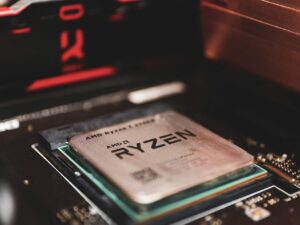
Labels such as Intel Core 5, Core Ultra 7, AMD Ryzen 5 or Ryzen AI 7 indicate a general position inside a product family. They do not identify the processor’s generation, power class, core design or real performance.
Identifies the broader processor line, such as Intel Core, Intel Core Ultra, AMD Ryzen or AMD Ryzen AI.
Distinguishes a specific processor from other chips using the same general tier name.
Can indicate mobile efficiency, higher-performance mobile use, desktop power limits or special features.
Compare the exact processor using the manufacturer’s official specifications and testing that reflects your real workload. Do not assume a newer Core 5 will always beat every older Core 7, or that a Ryzen 7 from one laptop behaves like every other Ryzen 7.
What matters more than clock speed alone?
- Processor generation and architecture
- Number and type of cores
- Sustained power and cooling
- Single-core and multi-core performance
- Integrated graphics capability
- Application optimization
- Battery and efficiency goals
- Platform support and upgrade path
Do You Need an AI PC or NPU?
An NPU, or neural processing unit, is specialized hardware intended to accelerate supported artificial-intelligence workloads while using less power than relying only on the processor or graphics system.
Separate useful features from marketing
An NPU has value only when the operating system and applications you use are designed to take advantage of it.
Browsing, documents, streaming, coding and many creative applications can run normally without Copilot+ hardware.
The term may describe many different performance levels and does not guarantee Copilot+ eligibility.
Requires a compatible NPU capable of at least 40 TOPS, along with qualifying memory, storage and Windows requirements.
Consider an NPU when:
- You need specific Copilot+ PC experiences.
- Your professional software documents NPU acceleration.
- You frequently use real-time camera, audio or translation effects.
- You need local AI processing with lower power use.
- The computer still provides strong CPU, GPU, memory and storage specifications.
How Much RAM Should You Buy?
| Memory capacity | Best fit | Important limitation |
|---|---|---|
| 8 GB | Basic browsing, documents and carefully managed light use | Can become restrictive during modern multitasking |
| 16 GB | Best general starting point for most buyers | Heavy creative work and virtual machines may need more |
| 32 GB | Gaming with background tools, development and creative work | May provide little benefit for basic use |
| 64 GB or more | Large technical, professional and virtualized workloads | Should be justified by specific software or project size |
Windows 11 officially lists 4 GB as a minimum requirement, but a minimum requirement is not a comfortable recommendation for a new primary computer.
Memory details beginners should verify
- Total installed capacity
- Whether the memory is removable or soldered
- Number of slots and how many are occupied
- Maximum supported capacity
- DDR generation
- Single-channel, dual-channel or another supported configuration
- Whether integrated graphics shares system memory
Choose an SSD and Enough Storage
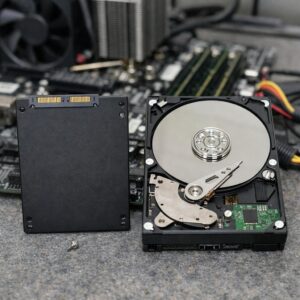
An SSD provides faster access and more responsive everyday operation than a mechanical hard drive. For most new computers, Windows and applications should be installed on an SSD.
Light use with limited local files and careful storage management.
Balanced starting point for work, study and normal home use.
Better for games, creative applications and larger local collections.
Large game libraries, video projects and extensive local storage.
Windows, updates, recovery partitions, applications and temporary files all use part of the advertised capacity. Do not plan to fill the entire drive with personal files.
Storage questions to ask
- Is the main drive an SSD or HDD?
- What is its advertised and usable capacity?
- Is it SATA or PCIe NVMe?
- Can the drive be replaced?
- Is there another internal storage slot?
- Does the model use soldered storage?
- How much space will your games or projects require?
- Where will backups be stored?
Integrated vs Dedicated Graphics
Match Graphics Hardware to the Workload
Built into the processor or system package and suitable for general computing, video playback and some lighter games.
Separate graphics hardware with its own processing resources and usually dedicated video memory.
May include specialized drivers, certifications and support for engineering or content-production applications.
A dedicated graphics processor is commonly useful for demanding games, 3D rendering, visual effects, engineering applications and certain video workflows. It is not automatically necessary for office work, streaming or ordinary web use.
| Activity | Graphics starting point | What else matters |
|---|---|---|
| Documents and web browsing | Integrated graphics | Processor, RAM, SSD and display quality |
| Streaming and video calls | Modern integrated graphics | Codec support, webcam and network connection |
| Light or competitive gaming | Capable integrated or entry dedicated graphics | Specific game, settings, resolution and cooling |
| Current demanding games | Dedicated graphics | Exact GPU, video memory, display resolution and power limits |
| Photo editing | Integrated or dedicated depending on application | RAM, display accuracy, processor and project size |
| Video, 3D and engineering | Application-supported dedicated graphics | Drivers, video memory, cooling and software certification |
Do Not Ignore the Display
A fast computer can still be unpleasant to use when the display is dim, reflective, inaccurate or too small for the workload.
Higher resolution can display sharper text and more detail, but screen size, scaling and graphics workload also matter.
A brighter display is useful in well-lit rooms and near windows. Manufacturer measurements should be compared carefully.
Creative work may require reliable coverage of the color space used by your projects and clients.
Higher refresh rates can improve gaming and scrolling, but they may increase power use and cost.
IPS, OLED and other technologies have different strengths, weaknesses and price ranges.
Glossy screens can look vivid but reflect more light, while matte coatings reduce reflections with varying image effects.
Practical display recommendations
- Use at least Full HD resolution for most normal laptop purchases.
- Confirm the screen’s actual brightness, not only the resolution.
- Choose a larger workspace for spreadsheets, coding and editing.
- Check color coverage for photography, design and video work.
- Consider a high-refresh display for gaming only when the graphics hardware can use it.
- Test text size and Windows scaling on high-resolution smaller screens.
- Inspect touchscreens for glare, fingerprints and pen compatibility.
Ports and Connectivity Can Decide Whether the PC Fits Your Setup
List every connection you need
- USB-A for existing accessories
- USB-C for data, charging or displays
- HDMI or DisplayPort for monitors
- Ethernet for wired networking
- Audio connection for headsets or speakers
- SD or microSD reader for cameras and media
- Thunderbolt or USB4 for compatible docks and high-bandwidth devices
- Wi-Fi standard supported by your router
- Bluetooth for mice, keyboards, headsets and controllers
- Charging connector and required power rating
External monitor support
Check how many external displays the computer supports, their maximum resolutions and refresh rates, and whether the required connection works directly or through a dock.
Graphics capability, port bandwidth, dock design, cable specification and operating-system support all influence whether a multi-monitor setup works correctly.
Laptop Battery Claims Need Context
Advertised battery runtime is normally measured under a controlled test. Real results vary with brightness, wireless activity, video calls, browser use, performance mode, external devices and battery condition.
Battery and charging checklist
- Compare battery capacity, not only claimed hours.
- Check independent tests using a workload similar to yours.
- Confirm the size and weight of the power adapter.
- Check whether USB-C charging is supported.
- Confirm the required charger wattage.
- Review battery replacement availability.
- Check whether the manufacturer offers charging limits or smart charging.
- For refurbished laptops, request current battery-health information.
Check Upgradeability and Repairability Before Buying
A computer that costs slightly more initially may provide better long-term value when its memory, storage, battery or other parts can be serviced.
| Component | Laptop | Desktop tower |
|---|---|---|
| RAM | May be removable, partially soldered or fully soldered | Usually replaceable within platform limits |
| Storage | May be replaceable or soldered | Often supports several replaceable drives |
| Battery | Model-specific service required | Not applicable to the computer itself |
| Graphics | Normally not internally upgradeable | Often replaceable in compatible systems |
| Display | Integrated and model-specific | External monitor can be replaced separately |
| Power supply | External adapter and internal charging system | Replaceable in many standard towers |
| Cooling | Compact and model-specific | More options in a suitable standard case |
Repairability questions
- Is an official service manual available?
- Are memory and storage soldered?
- Can the battery be replaced?
- Are replacement chargers and screens available?
- Does opening the case affect warranty coverage?
- Does the desktop use standard or proprietary components?
- Are qualified service providers available in your region?
- How long does the manufacturer normally provide firmware and driver updates?
Operating System and Software Compatibility
The computer should support a currently maintained operating system and every critical program, peripheral and security tool you intend to use.
Windows compatibility checklist
- The exact processor appears on Microsoft’s supported list.
- TPM 2.0 is available and enabled when required.
- UEFI and Secure Boot capability are present.
- The computer passes Microsoft’s PC Health Check test.
- Windows activation is legitimate.
- The manufacturer provides Windows 11 drivers.
- Required printers, scanners and specialist devices have compatible drivers.
- Workplace or school software supports the processor architecture.
Build the Complete Ownership Cost
The product-page price is only the beginning
Add everything required to turn the computer into a complete and maintainable setup.
Computer, operating system and required internal upgrades.
Monitor, keyboard, mouse, desk, chair and lighting.
Dock, adapters, cables, networking and external storage.
Warranty, battery, repair, software and backup services.
| Possible additional cost | Why it may be required |
|---|---|
| Monitor | Desktop systems and more comfortable laptop workstations |
| Keyboard, mouse and webcam | Desktop setup or improved ergonomics |
| Dock and adapters | Laptops with limited ports or multiple external displays |
| Memory or storage upgrade | Listings configured below the workload requirement |
| Backup drive or service | Protection from failure, theft, deletion and malware |
| Software subscriptions | Office, creative, security or professional applications |
| Extended service coverage | Optional protection beyond the included warranty |
| Replacement battery or charger | Long-term laptop ownership or refurbished purchases |
Do Not Buy Based on Brand Alone
Large manufacturers sell basic, premium, gaming, business and workstation product families. Quality, repairability, screen performance and support can vary substantially inside the same brand.
Research the exact configuration
- Complete model number or manufacturer part number
- Exact processor and graphics model
- Amount and arrangement of memory
- Storage model, capacity and upgradeability
- Display panel used in that configuration
- Battery capacity and charger
- Ports and external-display support
- Wireless hardware
- Warranty type and service location
- Independent reviews of the same configuration
Questions to Answer Before Paying
Check their current recommended requirements, not only the operating-system minimum.
Decide whether portability, battery operation or a permanent workstation matters.
Browsers, meetings, cloud tools and professional applications can remain open together.
Storage requirements can grow substantially after updates, media files and temporary caches.
Check the actual applications and games instead of buying a GPU only because it sounds more powerful.
This is especially important when considering an inexpensive laptop configuration.
Include monitors, docks, cameras, storage, audio equipment and wired networking.
Non-upgradeable memory and limited operating-system support can shorten practical life.
Confirm the responsible company, service method, period, exclusions and shipping costs.
Include the monitor, dock, accessories, software, backup and expected upgrades.
Common PC Buying Red Flags
What to Test During the Return Period
Complete these checks as soon as the computer arrives
Do not wait until the last day of the return window to discover a missing specification or hardware problem.
Confirm processor, memory, storage, graphics, display and accessories.
Install official operating-system, firmware and manufacturer updates.
Confirm Windows activation and Windows 11 eligibility.
Use Wi-Fi, Bluetooth, USB, video, audio and charging ports.
Open your applications, games, projects and external devices.
Check temperature, fan behavior, battery and stability during normal use.
First-week testing checklist
- Windows activation and PC Health Check
- All Windows and manufacturer updates
- Installed RAM and storage capacity
- Webcam, microphone and speakers
- Keyboard, trackpad or included mouse
- Display brightness, color, flicker and dead pixels
- Wi-Fi and Bluetooth stability
- Every required USB and display port
- Sleep, wake, restart and shutdown
- Battery charging and unplugged operation
- External displays and dock
- Your real games and professional applications
- Fan noise and temperature during sustained work
- Backup creation and test restoration
Frequently Asked Questions
How much RAM should a new PC have?
Sixteen gigabytes is the strongest general starting point for most work, study and everyday computers. Eight gigabytes can handle light use, while gaming, development, virtual machines and creative work may benefit from 32 GB or more.
Is 256 GB of storage enough?
It can be enough for light use with limited local files. A 512 GB SSD is more flexible for a primary computer, while games and media projects often justify 1 TB or more.
Should I choose Intel or AMD?
Both companies offer processors for basic, premium, gaming and professional computers. Compare the exact processor, computer design, battery, graphics, price and workload rather than choosing only by brand.
Do I need a dedicated graphics card?
Not for ordinary browsing, documents, streaming and many office tasks. Dedicated graphics becomes more important for demanding games, 3D work, engineering applications, visual effects and some video workflows.
Is an AI PC necessary?
No. Many applications run normally without a powerful NPU. Consider one when you need specific Copilot+ features or software that documents useful local NPU acceleration.
Is a Core i7 always better than a Core i5?
No. Generation, architecture, power class, cooling and complete model matter. A newer or higher-power Core i5 can outperform an older or low-power Core i7 in certain workloads.
Is a desktop always cheaper than a laptop?
Not necessarily. A laptop normally includes a display, battery, keyboard, trackpad, webcam and speakers. A desktop may require all of those items to be purchased separately.
Should I buy a laptop with soldered RAM?
It can be acceptable when the purchased capacity is sufficient for the computer’s expected lifetime. Avoid choosing a low soldered capacity only to reduce the initial price.
Does NVMe make every computer much faster than SATA?
NVMe offers a higher-performance interface, but the visible difference depends on the workload. A good SATA SSD can still provide responsive everyday performance compared with a mechanical system drive.
How can I check whether an older PC supports Windows 11?
Run Microsoft’s PC Health Check application and confirm that the computer meets the processor, TPM, Secure Boot, memory and storage requirements.
Should I buy an extended warranty?
Compare its cost, exclusions, service process and coverage with the included manufacturer warranty. A service plan may duplicate existing protection or provide limited value.
When is a refurbished PC a better option?
It can provide good value when the exact model officially supports current software, the seller documents its condition and the purchase includes a useful warranty and return period.
Related Joma PC Guides
Final Takeaway
The best PC purchase begins with a defined workload. Identify your applications, games, accessories, travel requirements and expected years of use before comparing specifications.
For most general-purpose buyers, 16 GB of RAM, a 512 GB SSD, a supported current processor and a comfortable display provide a balanced starting point. Gaming, professional media, virtual machines and technical applications may require more memory, storage and graphics performance.
Verify the exact model, not only the product family. Check Windows 11 eligibility, upgradeability, ports, battery, warranty, return policy and total setup cost. A balanced and repairable computer that meets your real needs is usually a better purchase than one selected for a single impressive specification.
Official resources consulted
- Microsoft Support: Windows 11 System Requirements
- Microsoft Support: How to Use the PC Health Check App
- Microsoft Support: Windows 10 Support Ended on October 14, 2025
- Microsoft: Windows 11 and Copilot+ PC Specifications
- Microsoft Support: All About SSD, HDD, and Storage Types
- Intel: Processor Names, Numbers, Generations, and Suffixes
- AMD: Official Processor and Graphics Specifications
- Intel: How to Choose RAM for a Gaming PC
- Adobe: Premiere Technical Requirements
- Microsoft Support: Multiple Monitors and Docking in Windows
- Intel: Gaming Laptop vs Desktop
- ENERGY STAR: Energy-Efficient Computers

The Joma PC Editorial Team publishes practical guides about choosing computers, troubleshooting PC problems, software, online security, and everyday computer use. Articles are edited for clarity, factual accuracy, and practical usefulness.