Computers naturally produce heat, especially during gaming, video editing, updates and other demanding work. The important question is not whether the device feels warm, but whether its cooling system can control that heat without repeated shutdowns, abnormal noise, instability or sustained loss of performance.
A warm case or fast-spinning fan does not automatically mean that a computer is defective. Modern processors continuously adjust speed, power and fan behavior according to the current workload, room temperature and cooling design.
Overheating becomes more likely when the computer repeatedly loses performance, freezes, shuts down, reports a hardware warning or cannot control temperatures during a workload it previously handled normally.
Maximum temperatures vary by processor, graphics hardware, firmware and computer design. A short temperature peak may be normal on one system and unusual on another. Check the official specification for the exact component and evaluate temperature together with performance, fan behavior, stability and hardware diagnostics.
Fans become louder and the case becomes warmer during gaming, rendering, updates, charging or other demanding activity.
Fans remain unusually loud during light use, performance drops repeatedly or the computer is much hotter than it was before.
Smoke, electrical odor, swelling, liquid leakage, scorch marks, sparks or repeated emergency shutdowns appear.
What PC Overheating Actually Means
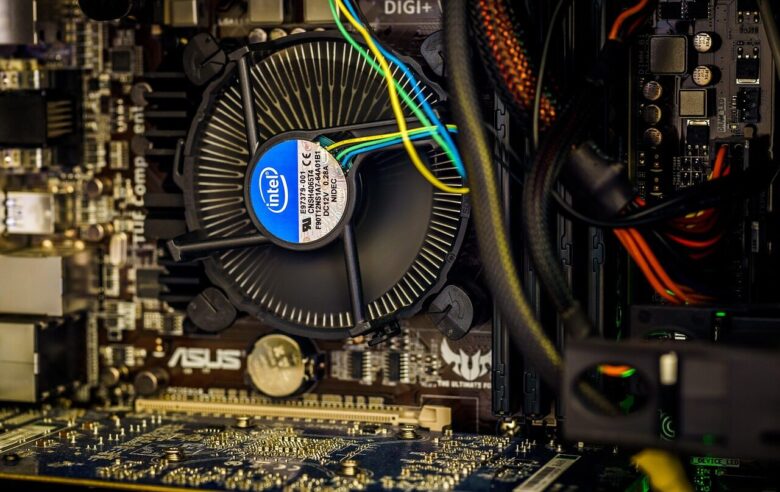
The processor, graphics hardware, power-delivery components, storage and other parts generate heat while operating. Fans, heatsinks, heat pipes, thermal-interface material and case ventilation move that heat away from sensitive components.
When the cooling system cannot remove heat quickly enough, the computer can reduce processor or graphics performance. This protective behavior is commonly called thermal throttling.
Normal Thermal Control
- Fan speed increases as the workload increases.
- Temperature rises during demanding activity.
- Power and clock speed adjust dynamically.
- The system remains stable.
- Performance returns to normal after the workload ends.
- No unusual odor, sound or physical damage appears.
Possible Cooling Failure
- Performance falls sharply during sustained use.
- The computer freezes or shuts down unexpectedly.
- A fan grinds, clicks, stops or repeatedly changes speed.
- Airflow from a normally active outlet becomes weak.
- The problem appears during light tasks.
- Official diagnostics report a fan or thermal error.
Why a Computer Can Feel Hot Without Overheating
Thin laptops and compact computers place powerful components close to the outer case. Heat that reaches the surface may indicate that the cooling system is transferring energy away from internal parts.
Fan noise and surface temperature can increase temporarily because of:
- Operating-system and application updates
- Cloud-file synchronization
- Antivirus scanning
- Battery charging
- Game installation or shader compilation
- Video encoding or rendering
- Large software builds
- Several browser tabs using video or scripts
- First-day setup and search indexing
- Warm room temperature
Warning Signs and What They May Mean
| Sign | Possible explanation | Recommended response |
|---|---|---|
| Fans become loud during gaming | Normal response to a demanding workload | Check that performance remains stable and vents are clear |
| Fans remain loud during light browsing | Background process, dust, power mode, firmware or cooling issue | Check Task Manager, updates and ventilation |
| Performance gradually drops during a game or render | Thermal, power, memory or software limitation | Compare temperatures, clock behavior and workload |
| Computer shuts down under load | Thermal protection, unstable power or hardware fault | Stop repeated testing and run official diagnostics |
| Grinding, rattling or ticking fan | Fan obstruction, worn bearing or damaged blade | Shut down and arrange inspection |
| No airflow from an outlet that normally exhausts air | Stopped fan, obstruction or changed fan behavior | Check the model documentation and diagnostics |
| Keyboard or case becomes warmer while charging | Charging and workload may increase cooling demand | Use the correct charger and maintain ventilation |
| Burning or electrical smell | Possible electrical or component damage | Turn off, unplug and do not power it on again |
| Raised trackpad or separated laptop case | Possible swollen battery | Stop using and seek qualified battery service |
| Smoke, sparks or melted plastic | Serious electrical or thermal failure | Disconnect power only when safe and seek professional help |
Common Causes of PC Overheating
Blocked ventilation
Beds, blankets, carpet, walls, cables or objects can block intake and exhaust openings.
Dust accumulation
Dust can restrict vents, filters, heatsink fins and fan movement, reducing effective airflow.
Fan problem
A worn bearing, damaged cable, obstruction or failed fan can reduce cooling and create abnormal noise.
Heavy software activity
Updates, malware, browser scripts, rendering or runaway applications can keep the processor busy.
High ambient temperature
Air cooling becomes less effective when the surrounding room is already hot or ventilation is poor.
Thermal-interface problem
Incorrect cooler installation or damaged thermal material can reduce heat transfer between components.
Aggressive power settings
Maximum-performance modes can permit higher power use, surface temperature and fan speed.
Overclocking or tuning
Increased power, voltage or clock targets can exceed the capacity of the installed cooling system.
Liquid-cooler failure
A stopped pump, poor mounting or coolant problem can cause rapid CPU temperature increases.
A Safe Ten-Minute Overheating Check
Begin with low-risk checks
Do not open the computer or replace components before completing the simplest diagnostic steps.
Save open work, restart the computer and allow startup activity to settle.
Move the computer to a stable surface and clear every external vent.
Use Task Manager to identify applications using significant processor resources.
Apply official Windows, firmware, driver and manufacturer updates.
1 Restart and Observe the Computer
A restart closes applications and services that may have become stuck or continued using processor resources unexpectedly.
- Save documents and active projects.
- Restart the computer rather than using sleep.
- Wait several minutes after reaching the desktop.
- Listen for fan behavior before opening applications.
- Open only the program that usually causes the problem.
- Observe whether the issue returns consistently.
2 Check CPU Activity in Task Manager
- Press Ctrl + Shift + Esc.
- Select Processes.
- Select the CPU column to sort by usage.
- Look for an application that remains unusually active.
- Save work before closing a program.
- Do not end unfamiliar Windows processes only because their names are unclear.
3 Try a Balanced or Recommended Power Mode
A high-performance mode may allow the processor to use more power and produce more heat. A balanced setting can reduce unnecessary fan activity during light work.
- Open Settings.
- Select System.
- Open Power & battery.
- Locate Power mode.
- Select Balanced or the manufacturer’s recommended setting.
- Test the same workload again.
4 Install Official Updates
Firmware, BIOS, operating-system and graphics updates can correct fan behavior, power management, compatibility and software problems.
- Install Windows updates through Windows Update.
- Use the official support application for the exact computer model.
- Download BIOS and firmware only from the manufacturer.
- Keep the correct power adapter connected during firmware updates.
- Do not interrupt the computer while a BIOS update is running.
- Avoid generic driver-updater applications.
How to Check Temperatures Responsibly
Temperature monitoring can help identify a pattern, but one number without context can be misleading. Different tools may display CPU package temperature, individual cores, graphics junction temperature, storage temperature or other sensors.
Use the official hardware diagnostic and support application for the exact laptop, desktop or motherboard.
Look up the complete processor or graphics model and its documented thermal limits.
Compare idle, normal use and sustained workload instead of judging a single brief peak.
Record these details during testing
- Exact computer, processor and graphics model
- Room temperature and computer location
- Applications running during the test
- Fan behavior and unusual sounds
- Temperature before the workload
- Highest temperature during the workload
- Whether performance falls over time
- Whether the system freezes or shuts down
- Whether performance recovers after cooling
- Any diagnostic error code
What thermal throttling may look like
Thermal throttling is more likely when a repeatable sustained workload produces several symptoms together:
- Temperature approaches the documented limit for the component.
- Processor or graphics clock speed falls.
- Power consumption is reduced.
- Fan speed remains high.
- Application or game performance drops.
- Performance returns after the computer cools.
A clock-speed change alone is not proof of overheating. Modern processors constantly adjust frequency according to workload, power, battery mode and firmware settings.
Safe Laptop Ventilation
Improve laptop airflow
- Use the laptop on a firm, stable and flat surface.
- Keep intake and exhaust openings uncovered.
- Do not operate it on beds, pillows, blankets or deep carpet.
- Keep papers, curtains and other objects away from the vents.
- Do not place another device directly against an exhaust opening.
- Use the correct power adapter for the model.
- Keep the laptop away from direct sunlight and parked vehicles.
- Do not cover the keyboard unless the manufacturer permits it.
- Check that a stand does not block bottom air intakes.
- Leave space around a docked laptop.
Safe Desktop Ventilation
Improve desktop airflow
- Keep the case upright on a stable surface.
- Leave space between the vents and nearby walls or furniture.
- Do not push the rear exhaust directly against a wall.
- Keep bottom intakes away from thick carpet.
- Clean removable dust filters according to the case instructions.
- Check that cables do not obstruct fan blades.
- Confirm that case fans are connected and oriented correctly.
- Keep objects away from the power-supply intake and exhaust.
- Do not place the computer inside an enclosed cabinet without ventilation.
- Follow the case or system manufacturer’s airflow documentation.
How to Clean External Vents Safely
Begin with external vent cleaning. Opening a laptop or compact computer may require model-specific tools, battery disconnection and procedures that are not suitable for beginners.
- Shut the laptop down completely.
- Disconnect the charger and external devices.
- Allow the device to cool.
- Locate intake and exhaust openings in the manual.
- Use short bursts from a can of compressed air.
- Keep the can in the position instructed on its label.
- Use a dry microfiber cloth for loose exterior dust.
- Reconnect power only after the computer is clean and dry.
- Shut the desktop down.
- Switch off and disconnect wall power.
- Disconnect external devices.
- Allow internal components to cool.
- Clean external vents and removable filters.
- Use compressed air according to the manufacturer’s instructions.
- Confirm that no vent remains obstructed.
- Reconnect cables only after completing the inspection.
- Power the computer off first.
- Disconnect wall power and accessories.
- Use canned compressed air.
- Use short controlled bursts.
- Follow the exact service manual.
- Keep liquids away from openings.
- Do not blow into vents with your mouth.
- Do not use a household blower inside the computer.
- Do not use an ordinary vacuum on internal electronics.
- Do not spray cleaner directly onto the computer.
- Do not clean while the device is powered.
- Do not force objects through vents.
Should You Open the Computer?
Opening a standard desktop tower may be manageable when the manufacturer provides clear instructions and the user understands electrical and static precautions. Laptops, mini PCs and all-in-one computers can be substantially more difficult.
| Device | Typical difficulty | Safer approach |
|---|---|---|
| Standard desktop tower | Often designed for component access | Follow the case and motherboard manuals |
| Compact business desktop | May use proprietary clips and cooling ducts | Use the exact service manual |
| Mini PC | Compact cables and limited internal space | Use authorized service when uncertain |
| All-in-one computer | Display and computer share one enclosure | Professional service is often safer |
| Laptop with removable bottom panel | Battery and delicate cables may be exposed | Follow the model-specific service procedure |
| Thin sealed laptop | Adhesive, fragile clips or integrated components | Consider authorized service |
Does Thermal Paste Need to Be Replaced?
Thermal-interface material fills microscopic gaps between a processor and its cooling surface. Correct material and mounting pressure help transfer heat into the heatsink or water block.
Thermal paste is not a universal first repair and does not have a guaranteed replacement schedule for every computer. Replacing it may help when:
- The cooler was removed and must be reinstalled.
- The existing application was damaged or contaminated.
- A desktop cooler is mounted incorrectly.
- Temperature behavior changed after previous service.
- The manufacturer’s procedure calls for replacement.
- Other simple airflow and software checks have been completed.
Before replacing thermal material
- Confirm that the fan works.
- Confirm that vents and heatsink fins are not blocked.
- Check cooler mounting pressure.
- Identify the exact processor and cooler.
- Obtain the official installation procedure.
- Check whether thermal pads or liquid metal are also present.
- Record screw order and tightening pattern.
- Disconnect the battery when the service manual requires it.
- Use only a compatible thermal-interface material.
- Stop when the procedure exceeds your experience.
Fan Problems That Need Repair
Fan speed naturally changes, but mechanical noises or a fan that cannot rotate correctly require attention.
| Fan behavior | Possible meaning | Next step |
|---|---|---|
| Fast but smooth fan during heavy work | Normal cooling response | Check airflow and workload |
| Fan remains fast after applications close | Background process, update, sensor or cooling issue | Restart and check Task Manager |
| Grinding or rattling | Worn bearing, debris or damaged blade | Arrange inspection or replacement |
| Fan repeatedly starts and stops every few seconds | Fan curve, firmware, sensor or mechanical issue | Install updates and run diagnostics |
| Fan diagnostic fails | Electrical or mechanical failure | Do not continue heavy workloads |
| Fan does not spin while temperature rises rapidly | Possible fan failure or disconnected cable | Shut down and arrange repair |
Liquid-Cooled Desktop Problems
A desktop using an all-in-one or custom liquid-cooling system can overheat even when its radiator fans appear to be spinning.
Possible liquid-cooling warning signs
- CPU temperature rises very rapidly after startup.
- Radiator fans spin but cooling remains ineffective.
- The pump reports zero speed in the official control software.
- One tube remains much warmer than expected.
- New grinding, clicking or unusually loud bubbling appears.
- Moisture or residue appears around fittings or tubes.
- The processor overheats immediately after the cooler was moved.
- The pump cable or control connection is loose.
Gaming and Other Demanding Workloads
Gaming, rendering, compiling, simulations and video encoding can keep the processor and graphics hardware active for long periods. A computer may be stable during browsing but develop problems during these sustained workloads.
Unlimited frame rates can make the graphics hardware produce additional heat without improving the experience beyond the display’s useful range.
Rendering can reveal cooling problems that do not appear during short bursts of activity.
Large builds, containers and several virtual machines can keep many processor cores active.
Recording, streaming, browser video, overlays and launchers may add substantial load to a game or application.
Reduce unnecessary heat during gaming
- Use a frame-rate limit appropriate for the display.
- Lower unusually demanding graphics settings.
- Close unnecessary launchers and browser tabs.
- Disable recording or overlays you do not use.
- Use the computer’s balanced thermal profile when suitable.
- Keep the power adapter and vents unobstructed.
- Confirm that laptop fans are not blocked by the desk or stand.
- Install official game and graphics updates.
- Test without overclocking or manual voltage changes.
- Allow the computer to cool before repeating a failed test.
Overclocking and Undervolting
Overclocking increases performance targets beyond normal specifications and can raise heat, power use and instability. Manual voltage changes can also cause crashes or data corruption when configured incorrectly.
- Return BIOS settings to manufacturer defaults.
- Disable processor and graphics overclocking.
- Remove custom fan curves temporarily.
- Test with official balanced settings.
- Save important files before stability testing.
- Copying voltages from another processor
- Disabling thermal protections
- Forcing unsupported fan-control software
- Applying unofficial firmware
- Increasing limits to hide throttling
When to Run Hardware Diagnostics
Official diagnostics can test fans, memory, storage and other components without relying only on visual observations.
Run manufacturer diagnostics when:
- The computer repeatedly shuts down.
- A fan makes abnormal mechanical noise.
- The fan does not appear to operate.
- The problem remains after cleaning external vents.
- Performance drops under the same workload every time.
- A BIOS or startup warning appears.
- The computer recently received hardware service.
- The cooling system was moved or replaced.
- The device is still within its return period.
- You need an error code for warranty support.
Use only the official support page or application for the exact model. Different manufacturers provide different boot keys, test names and thermal controls.
When Professional Repair Is the Safer Choice
Problems that commonly require hardware service
Stop repeated testing when the computer displays evidence of mechanical, electrical or battery damage.
The part does not operate, fails diagnostics or makes severe mechanical noise.
The trackpad, keyboard or case is lifting or separating.
There is evidence of damaged power delivery or overheated material.
Moisture, residue or rapid uncontrolled temperature increase appears.
The model requires major disassembly, battery removal or specialized thermal materials.
Ventilation, updates and software checks do not resolve the problem.
What to Tell a Repair Technician
Prepare useful diagnostic information
- Exact computer model and serial number
- Processor and graphics model
- When the problem started
- Applications running when it happens
- Whether the issue occurs on battery or wall power
- Whether it occurs after a specific amount of time
- Temperature readings and the tool used
- Fan noise description or recording
- Shutdown, blue-screen or diagnostic error codes
- Recent updates, repairs or hardware changes
- Cleaning or thermal work already attempted
- Whether important files are backed up
How to Prevent Future Cooling Problems
Maintenance frequency depends on the environment. A computer used around pets, smoke, fabric fibers, workshops or heavy dust may need attention more often than one used in a clean office.
Preventive cooling checklist
- Keep external vents unobstructed.
- Use laptops on stable hard surfaces.
- Keep desktops away from walls and enclosed cabinets.
- Inspect vents and filters periodically.
- Clean visible dust before airflow becomes restricted.
- Keep Windows, BIOS, firmware and drivers updated.
- Use official power and thermal profiles.
- Avoid unnecessary overclocking.
- Check fan noise when behavior changes.
- Use the correct charger and power supply.
- Monitor battery swelling and case deformation.
- Maintain recoverable backups before hardware problems occur.
Common Overheating Troubleshooting Mistakes
Frequently Asked Questions
What temperature is too hot for a CPU?
There is no single limit for every CPU. Identify the complete processor model and check its official maximum operating or junction-temperature specification. Evaluate the reading together with throttling, stability, fan behavior and workload.
Is 90 °C automatically dangerous?
Not automatically. Some processors are designed to operate near their documented maximum during demanding workloads, while the same reading may be unusual on another system. Sustained performance loss, shutdowns or a temperature beyond the component’s specification require investigation.
Why is my laptop hot while charging?
Charging, battery management and background activity can increase power use and cooling demand. Use the correct charger, keep the vents clear and investigate when the heat is accompanied by swelling, shutdowns or abnormal noise.
Is a loud fan always a sign of overheating?
No. A fan may spin faster during demanding work, updates, charging or in a warm room. Grinding, ticking, failure diagnostics or continuous maximum speed during light use deserve closer inspection.
Can dust make a computer slower?
Yes. Dust can restrict airflow, causing components to reduce performance when the cooling system cannot control heat effectively.
Can I use a vacuum to clean my PC?
Avoid using an ordinary household vacuum on internal electronics. Manufacturers commonly recommend canned compressed air for vents and internal dust, following the exact cleaning instructions for the model.
Should I replace thermal paste every year?
There is no universal annual replacement requirement. Replace it when the cooler is removed, the application is damaged or a model-specific diagnosis indicates a heat-transfer problem.
Will a laptop cooling pad fix overheating?
It may improve external airflow on some designs, but it cannot repair a failed fan, blocked internal heatsink, incorrect cooler mounting or damaged thermal system.
Why does my PC shut down while gaming?
Possible causes include thermal protection, unstable power, graphics drivers, memory errors, power-supply problems or hardware failure. Stop repeated testing and use official diagnostics when shutdowns continue.
Can overheating damage an SSD?
Storage devices have their own operating specifications and may reduce performance or report warnings when conditions are unsuitable. Check the exact drive model and maintain backups regardless of temperature.
Should all desktop fans spin all the time?
Not necessarily. Some graphics-card and case-fan systems stop fans during low temperatures. Check the manufacturer’s expected behavior and run official diagnostics when a fan remains stopped while temperatures rise.
Can malware cause overheating?
Malware can increase processor or graphics activity, but high resource use also has many legitimate causes. Run the installed security provider’s official scan and investigate unfamiliar processes carefully.
Is hot air from the exhaust a bad sign?
Not necessarily. Hot exhaust can show that heat is being moved out of the computer. Weak airflow, mechanical noise, throttling or shutdowns provide more useful evidence of a cooling problem.
When should I stop using an overheating computer?
Stop immediately when there is smoke, a burning smell, sparks, melted material, visible liquid, battery swelling, severe fan damage or repeated emergency shutdowns.
Related Joma PC Guides
Final Takeaway
Heat is a normal result of computer operation. Fans becoming louder during gaming, rendering, updates or charging do not automatically indicate a defect.
Investigate when the computer repeatedly loses performance, freezes, shuts down, produces abnormal fan sounds or behaves very differently during light use. Start with ventilation, Task Manager, balanced power settings, official updates and manufacturer diagnostics.
Clean external vents only after shutting down and disconnecting power. Use the manufacturer’s service manual before opening any device, and do not replace thermal material without understanding the cooling design.
Smoke, burning odors, liquid, melted plastic, sparks and battery swelling require immediate shutdown and qualified service. No temperature-monitoring application should override clear physical evidence of a safety problem.
Official resources consulted
- Intel Support: Information About Temperature for Intel Processors
- Intel Support: What Is Throttling and How Can It Be Resolved?
- Intel Support: How to Apply or Remove Thermal Interface Material
- Dell Support: Troubleshoot Computer Overheating and Shutdown Issues
- Dell Support: How to Clean and Maintain Your Computer
- Dell Support: How to Troubleshoot Fan Issues
- HP Support: Reduce Heat Inside a Laptop to Prevent Overheating
- HP Support: Reduce Heat Inside a Desktop Computer
- Apple Support: Keep a Mac Laptop Within Acceptable Operating Temperatures
- Microsoft Support: Fan Behavior and Fan Noise in Surface Devices
- Microsoft Support: Device Performance and Health in Windows Security

The Joma PC Editorial Team publishes practical guides about choosing computers, troubleshooting PC problems, software, online security, and everyday computer use. Articles are edited for clarity, factual accuracy, and practical usefulness.