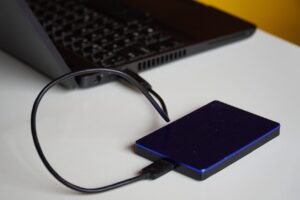

For most new Windows 11 PCs, the essential first-day setup is Windows Update, Windows Security, account recovery, a tested backup and one primary browser. Add a password manager next. Install office, archive, media, PDF, hardware and communication apps only when the features built into Windows do not meet a specific need.
A new computer does not need a large bundle of utilities. Duplicate antivirus programs, unnecessary browser extensions, gaming launchers and vendor tools can add startup processes, notifications and update services before they provide any benefit.
Standard support for Windows 10 ended on October 14, 2025. A newly purchased or refurbished computer should normally run a supported operating system. If the PC arrived with Windows 10, review its Windows 11 eligibility or current support options before storing important information on it.
Not Every Recommended Tool Is Mandatory
- Windows updates
- Security protection
- Account recovery
- File backup
- Office suite
- Archive utility
- Media player
- Password manager
- Power-user utilities
- Communication apps
- Creative software
- Gaming launchers
Before Installing Any Software
Prepare the PC in the right order
- Complete Windows Update. Go to Settings > Windows Update, install available updates, restart and check again. Some updates appear only after an earlier update has finished.
- Remove unwanted trial software carefully. Use Settings > Apps > Installed apps. Do not remove a hardware utility or driver simply because its name is unfamiliar.
- Confirm account recovery. Verify the recovery email or phone number for the account used to sign in. Save two-step verification recovery codes somewhere other than this PC.
- Save the device-encryption recovery key. If Device Encryption or BitLocker is active, keep the recovery key in a separate, accessible location. A key stored only on the encrypted computer will not help if the computer stops booting.
- Set up backup before creating important files. Include documents, photographs, projects and any local files that cannot easily be replaced.
- Download only from official sources. Prefer the Microsoft Store or the developer’s verified website, and check the publisher shown by Windows before approving installation.
Essential Software at a Glance
| Category | Good starting option | Priority | Why you may need it |
|---|---|---|---|
| Security | Windows Security | Essential setup | Built-in antivirus, firewall and protection controls |
| Browser | Microsoft Edge, Firefox or Chrome | Choose one primary | Web access, account synchronization and extensions |
| Password manager | Bitwarden or another reputable manager | Strongly recommended | Unique passwords and safer account access |
| Backup | Windows Backup plus an external or independent cloud copy | Essential setup | Protection from deletion, hardware failure, theft and loss |
| Office suite | LibreOffice or Microsoft 365 | Depends on your work | Documents, spreadsheets and presentations |
| Archive utility | 7-Zip | Useful for some downloads | Additional archive formats and compression controls |
| Media player | VLC media player | Install when needed | Play additional local video and audio formats |
| PDF software | Microsoft Edge first | Dedicated app only if needed | Advanced forms, signatures or document workflows |
| Windows utilities | Microsoft PowerToys | Optional | Window management, file tools and productivity features |
1. Security Software: Start With the Protection Already Included
1Windows Security
Windows Security is built into Windows 11 and provides access to Microsoft Defender Antivirus, Firewall, account protection, device security and controls for suspicious applications, websites and downloads.
Most home users do not need another real-time antivirus program immediately. Begin by confirming that the built-in protection is active and receiving updates.
- Open the Start menu and search for Windows Security.
- Open Virus & threat protection and check for current protection updates.
- Review Firewall & network protection. The active network should not show the firewall as disabled.
- Open App & browser control and review the recommended reputation-based protection settings.
- If the PC included a third-party antivirus trial, decide whether to keep or remove it before it expires.
If Windows Security reports that another provider is managing antivirus protection, that may be the preinstalled trial. To return to Microsoft Defender, uninstall the trial through Settings > Apps > Installed apps, restart the PC and reopen Windows Security to confirm that real-time protection is active.
A separate on-demand scanner can be useful during troubleshooting, but it should come from a reputable publisher and does not replace safe downloads, updates or backups.
2. Browser: Keep Edge or Choose One Alternative
2Microsoft Edge, Mozilla Firefox or Google Chrome
Microsoft Edge is already installed on Windows 11 and can handle ordinary browsing and PDF viewing. There is no need to replace it simply because the computer is new.
A practical choice when you want Windows integration and already use a Microsoft account.
Useful when you prefer Mozilla’s browser ecosystem or want a browser independent from Microsoft and Google accounts.
Convenient when bookmarks, passwords and browser data are already synchronized through a Google account.
A second browser can help with testing, account separation or a site compatibility problem. It does not need to open at startup.
3. Password Manager: Protect Accounts From Password Reuse
3Bitwarden or Another Reputable Password Manager
A password manager creates and stores different passwords for different accounts. This limits the damage if a password exposed by one website is later tested against other services.
Bitwarden is one available option with desktop, browser and mobile applications. Other reputable managers may be suitable depending on device support, account recovery, sharing features and subscription needs. The separate Joma PC password manager guide explains the main choices in more detail.
- Create a strong master password that is not reused anywhere else.
- Save account recovery details in a secure location outside the vault.
- Enable two-step login and store its recovery code separately.
- Install only the official application and browser extension.
- Begin with email, banking, shopping and cloud-storage accounts.
- Replace reused passwords gradually and confirm each new login before moving on.
4. Backup: Configure It Before You Need It
4Windows Backup and an Independent Copy
Windows Backup can preserve selected files, settings, Wi-Fi information, application information and preferences connected to a Microsoft account. It can help when moving to another Windows PC, but it is not a complete copy of every installed program and local file.
Important documents and photographs should also exist in another location. The comparison of cloud backup and external drives explains why using both can protect against different kinds of loss.
Helpful when the computer and nearby equipment are stolen, lost or damaged together. Check storage limits, version history and deleted-file retention.
Useful for fast local recovery and for keeping a copy disconnected from the PC when the backup is complete.
- List the folders containing files that cannot easily be recreated.
- Confirm which folders Windows Backup or the selected cloud service actually includes.
- Create another copy on an external drive with enough free space.
- Disconnect the external drive after the backup if continuous access is unnecessary.
- Restore one test file from each backup method and open it.
- Set a recurring reminder to check that new files are still being included.
5. Office Suite: Choose Based on File Compatibility
5LibreOffice or Microsoft 365
An office suite is useful for documents, spreadsheets and presentations, but not every PC needs a full desktop package.
A free, open-source desktop suite for common word-processing, spreadsheet and presentation tasks.
Appropriate when Microsoft Office workflows, workplace collaboration, macros or advanced Word, Excel and PowerPoint features are required.
Suitable for occasional editing, simple collaboration and users who do not want another large desktop installation.
A valid choice when the PC is mainly used for browsing, gaming, media or other applications.
6. Archive Utility: Add One Only for Features Windows Lacks
67-Zip
Windows can work with common compressed files. A dedicated archive utility is useful when you need additional formats, compression controls, encrypted archives or integration with File Explorer.
7-Zip is a free, open-source archive utility for Windows. It can create and extract compressed files and does not need to run continuously in the background.
- Download the correct Windows version from the official 7-Zip website.
- Extract files to a normal folder before running an installer from an archive.
- Scan unfamiliar downloads before opening executable files or scripts.
- Do not enter passwords or disable security merely because a file inside an archive tells you to do so.
- Delete installers and extracted copies you no longer need after confirming the software works.
7. Media Player: Install One When Windows Cannot Play a File
7VLC Media Player
The media applications included with Windows are enough for many users. VLC is useful when local video or audio files are not handled well by the default applications.
VLC is a free, open-source, cross-platform media player maintained by the VideoLAN project.
- Download VLC only from VideoLAN or a verified app-store listing.
- Review file associations during setup if you want to keep another default player.
- Keep the player updated when a new stable release is available.
- Avoid unofficial codec packs offered by unknown websites.
8. PDF Reader: Try the Browser First
8Microsoft Edge for Basic PDF Use
Microsoft Edge can open PDF documents without another application. This is enough for reading, searching, printing and many basic annotation tasks.
Install a dedicated PDF application only when work or study requires features such as:
- Certificate-based or advanced digital signatures
- Complex interactive forms
- Detailed review and annotation workflows
- Page organization, redaction or document editing
- Specific accessibility or business-document requirements
9. Optional Windows Utilities: PowerToys
9Microsoft PowerToys
Microsoft PowerToys is a collection of free, open-source Windows utilities. It is not essential for a beginner, but individual modules can improve a defined workflow.
Creates custom window layouts for large monitors and multitasking.
Provides a quick launcher for applications, files and other actions.
Helps rename groups of files using structured rules.
Adds a convenient way to resize image copies from File Explorer.
10. Hardware and Driver Utilities
10Use Only Official Manufacturer Tools
Some laptops and prebuilt desktops include a manufacturer application for firmware updates, battery charging limits, diagnostics, fan settings and warranty information. Keep it when it provides a feature you use; do not assume that every vendor promotion or notification tool is required.
Use driver sources in this order:
- Windows Update for normal system and device updates.
- The computer manufacturer’s support page for the exact laptop or prebuilt desktop model.
- The official component manufacturer when appropriate for a custom desktop or separately installed component.
If a device does not work, open Device Manager and look for a warning symbol, then identify the exact PC or component model before downloading anything. Optional driver updates in Windows Update are not automatically necessary when the device already works correctly.
Software to Install Only When Required
Install the platform used by your workplace, school or contacts. Browser participation may be enough for occasional meetings.
Steam, Xbox, Epic Games and other launchers may start automatically. Disable unnecessary startup behavior.
Choose based on file formats, hardware requirements, collaboration needs and the features you will actually use.
Avoid synchronizing the same folder through several services unless you understand how conflicts and deletions are handled.
Install only the product approved by your employer or a provider you intentionally selected.
Confirm the required language, project version and installation method before adding large development environments.
Choose the Correct Windows Download
Official download pages may offer several files. Selecting the wrong processor architecture is a common reason an installer will not run.
The usual choice for modern Windows PCs with Intel or AMD processors.
Required for Windows-on-ARM devices. Do not choose it merely because the processor is described as 64-bit.
Mainly for older software or systems. Use it only when the publisher specifically requires it.
Store apps are simpler to maintain. EXE and MSI files perform a normal desktop installation. Portable apps may require manual updating and should still come from the publisher.
- Open Settings > System > About.
- Find System type under device specifications.
- Match that information to the publisher’s download choices.
- Check the application’s supported Windows version and available storage before downloading.
Safe Software Installation Checklist
Check these points before clicking Install
- The website belongs to the actual software publisher.
- The program supports your version of Windows and processor type.
- The installer name and publisher shown by Windows look correct.
- The download was not supplied through an unrelated advertisement or pop-up.
- No unexpected browser extension or additional program is preselected.
- You understand whether the software is free, subscription-based or a trial.
- The application does not request permissions unrelated to its purpose.
- You know how automatic renewal works before entering payment information.
- Windows Security remains active during and after installation.
- You have noted any custom file location or account needed to use the program later.
What to Do If an App Will Not Install
Do not respond to an installation error by immediately disabling antivirus protection or downloading replacement system files from an unknown site. Work through the likely causes in order:
- Record the exact error. Take a screenshot or write down the error code before closing the installer.
- Restart and update Windows. A pending restart or missing system update can block installation.
- Check compatibility. Confirm the Windows version, x64 or ARM64 architecture, storage requirement and any required account or subscription.
- Check S mode. If Windows permits Store apps only, look for an official Store version before considering a switch out of S mode.
- Download a fresh copy. Delete the incomplete installer and obtain it again from the official publisher.
- Review the security warning. An unexpected or unknown publisher is a reason to stop and verify the file, not a reason to bypass the warning.
- Use administrator approval only when expected. Many desktop installers need it, but a simple document, browser extension or media file should not request system-level installation rights.
- Consult the publisher’s documentation. Avoid random DLL downloads, modified installers and videos that instruct you to disable security controls.
If a partial installation appears under Settings > Apps > Installed apps, uninstall it before trying again. Repeated unexplained failure is a reason to stop and verify compatibility rather than forcing the installation.
After Each Installation, Check Four Things
Finish the setup instead of accepting every default
A program that installed successfully may still add unwanted startup behavior, file associations or account synchronization.
Open the app once, confirm that it works and install updates through its official update feature.
Use Settings > Apps > Default apps if the program took over file types you did not intend to change.
Review Settings > Apps > Startup and disable nonessential launchers or helpers.
Uninstall bundled trials, extensions or companion tools that you did not choose.
Programs and Downloads to Avoid
Recommended Setups for Different Users
| User type | Practical starter software |
|---|---|
| Basic home user | Windows Security, one browser, account recovery, Windows Backup and an external or independent cloud copy |
| Student | Basic setup plus the office suite, PDF features and communication platform required by the school |
| Remote worker | Basic setup plus a password manager, approved meeting tools, office suite and employer-required security software |
| Content creator | Basic setup plus selected media software, sufficient backup storage and verified hardware drivers |
| PC gamer | Basic setup plus graphics drivers from official sources, the launchers for owned games and voice chat when used |
| Advanced Windows user | Basic setup plus selected PowerToys modules and specialized utilities for a defined workflow |
Frequently Asked Questions
Do I need to buy antivirus software for a new Windows PC?
Not automatically. Windows Security includes real-time antivirus and firewall protection. Begin by keeping it active and updated. Consider another security product only when its additional features meet a defined need, and do not run conflicting real-time antivirus programs.
Should I remove Microsoft Edge?
There is usually no need. Edge is integrated with Windows and can remain available even when another browser is set as the default.
Is LibreOffice fully compatible with Microsoft Office?
It can open and save many common Microsoft Office formats, but complex formatting, macros, formulas and collaboration features may behave differently. Test copies of important documents before relying on cross-application compatibility.
Do I need both 7-Zip and VLC?
They solve different problems. 7-Zip works with compressed archives, while VLC plays media. Install either one only when the built-in Windows applications do not meet your needs.
Should every program start automatically with Windows?
No. Security, backup and necessary hardware tools may need background access. Gaming launchers, chat apps and creative programs can usually be opened manually. Review Settings > Apps > Startup after installing software.
Is software from the Microsoft Store always safe?
The Microsoft Store provides a more controlled installation source, but you should still confirm the publisher, permissions, pricing and whether the listing is the official application.
Can I use only free software?
Many users can build a capable setup with built-in Windows features and reputable free applications. Paid software becomes useful when specific professional features, support, collaboration or licensing are required.
How do I know whether an installer is legitimate?
Obtain it from the publisher’s official website or verified store listing, check the publisher shown by Windows and avoid installers delivered through unrelated advertisements, pop-ups, message attachments or shortened links.
What should I do when Windows shows an unknown publisher?
Cancel the installation and verify the download source. An unknown publisher does not prove that a file is malicious, but it removes an important identity check. Do not bypass the warning unless the publisher’s official documentation explains the file and you are certain it came from the correct source.
Final Takeaway
The best new-PC software setup is usually smaller than a typical download list suggests. Windows 11 already provides security, browsing, PDF, screenshot, media and backup features that may be enough for everyday use.
Begin with updates, account recovery, Windows Security and a tested backup. Add a password manager, office suite, archive utility, media player and optional productivity tools only when they solve a real problem.
Using fewer trusted applications makes the computer easier to maintain, reduces unnecessary background activity and makes a troublesome installation easier to identify and remove.
Official resources consulted
- Microsoft Support: Stay protected with the Windows Security app
- Microsoft Support: Back up and restore with Windows Backup
- Microsoft Support: Windows 10 support has ended
- Mozilla: Download Firefox for Windows
- Google Chrome Help: Download and install Chrome
- Bitwarden Help: Getting started with the desktop application
- LibreOffice: Official download
- 7-Zip: Official website
- VideoLAN: Official VLC media player
- Microsoft Learn: PowerToys utilities

The Joma PC Editorial Team publishes practical guides about choosing computers, troubleshooting PC problems, software, online security, and everyday computer use. Articles are edited for clarity, factual accuracy, and practical usefulness.