For most PCs, choose an SSD as the main drive. It makes Windows, applications and frequently used games feel more responsive. Choose an HDD when the priority is storing several terabytes at a lower cost, or combine an SSD and HDD in a desktop that has room for both.
The decision is not simply about which technology is newer. The right drive must fit the computer, hold your files with room to grow and suit the way those files are used. A fast drive that does not fit the available slot—or a large drive with no separate backup—does not solve the underlying storage problem.
Best when responsiveness, quiet operation, portability and faster loading matter most.
Best when you need several terabytes for files that do not require maximum access speed.
Best for desktops that need SSD performance and additional lower-cost storage capacity.
?A four-question decision
- Does the PC have only one drive slot? Choose an SSD with enough capacity for the operating system, applications and files.
- Do you need inexpensive bulk storage? Consider an HDD for completed projects, recordings, photos or other large collections.
- Does the desktop support multiple drives? An SSD for active work plus an HDD for less frequently accessed data can balance speed and cost.
- Is this drive meant to protect important files? Keep that backup separate from the working drive; a second internal disk alone is not complete protection.
What Is the Difference Between an SSD and an HDD?
Solid-State Drive
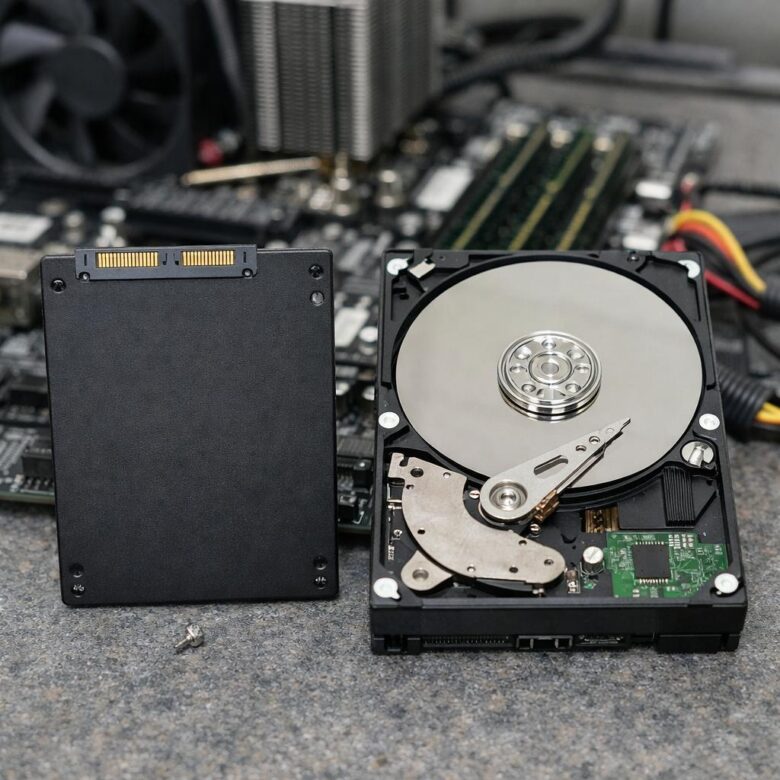
An SSD stores information on non-volatile flash memory. It has no spinning platters or moving read-and-write head.
- Fast access to files and applications
- Silent drive operation
- No mechanical seek delay when locating data
- Better resistance to bumps during portable use
- Available in SATA and PCIe NVMe designs
Hard Disk Drive
An HDD stores information magnetically on rotating platters. A mechanical head moves across those platters to read and write data.
- Large capacities commonly available
- Generally lower cost per unit of storage
- Useful for archives and media libraries
- Produces sound and vibration during operation
- More sensitive to impact while operating
SSD vs HDD Comparison
| Category | SSD | HDD |
|---|---|---|
| System responsiveness | Faster access and loading | Slower because mechanical parts must move |
| Windows startup | Usually the better system-drive choice | Can make startup and updates feel slower |
| Application loading | Better for frequently used programs | Acceptable for files and less frequently used software |
| Noise | Silent drive operation | May produce spinning and access sounds |
| Physical movement | No moving internal parts | Contains spinning platters and a moving head |
| Portable computers | Generally better suited to movement | More vulnerable to shock during operation |
| Large capacity on a budget | Higher cost as capacity increases | Usually more economical |
| Large archives | Fast but may cost more than necessary | Practical for files accessed less often |
| Power use | Generally efficient, especially in laptops | Must power mechanical components |
| Failure risk | Can fail electronically or through flash wear | Can fail electronically or mechanically |
| Backup requirement | Always required | Always required |
iWhat advertised speed figures do—and do not—tell you
Drive specifications often emphasize sequential transfer speed: moving a large, continuous file under suitable test conditions. Everyday responsiveness also depends on how quickly the drive handles many small files, the computer’s interface, available cache, temperature and current workload.
- Sequential speed matters when copying or editing large files.
- Random access affects operating-system activity and the loading of many small files.
- Write-cache behavior matters during long transfers because some SSDs slow down after their fast cache is filled.
- Interface limits mean a fast drive cannot exceed what the installed slot, cable or enclosure supports.
Do not pay for the highest headline speed unless the PC supports it and the workload can benefit from it.
An SSD or HDD installed inside the computer is still the working copy of your files. Keep separate backups because either type of drive can fail, be erased, become corrupted or be affected by malware.
SATA, NVMe and M.2 Explained Simply
Storage names can be confusing because some describe the drive’s shape while others describe how it communicates with the computer.
SATA SSD
Uses the established SATA connection. It is a common upgrade for older desktops and laptops that previously used a 2.5-inch hard drive.
PCIe NVMe SSD
Communicates through PCI Express using the NVMe standard. It is designed for higher-performance storage access.
M.2 Form Factor
Describes a compact physical design. An M.2 drive may use SATA or PCIe NVMe, depending on the drive and computer.
| Drive type | Common physical design | Best use | Compatibility check |
|---|---|---|---|
| 2.5-inch SATA SSD | Rectangular drive with SATA connectors | Upgrading older laptops and desktops | SATA data and power connection or compatible laptop bay |
| M.2 SATA SSD | Small circuit-board design | Compact systems supporting M.2 SATA | Slot must support SATA through M.2 |
| M.2 NVMe SSD | Small circuit-board design | Modern systems and performance-focused use | Slot, PCIe generation, keying and physical length |
| 3.5-inch HDD | Larger desktop drive | High-capacity desktop storage | Available drive bay, SATA data and power |
| 2.5-inch HDD | Smaller laptop-style drive | Older laptops and portable enclosures | Correct thickness, connector and drive bay |
Which Drive Is Better for Everyday Use?
For browsing, documents, streaming, video calls and normal home use, an SSD provides the more noticeable improvement. Windows, browsers and applications repeatedly access many small files, which benefits from faster storage response.
It improves startup, updates, application loading and general responsiveness without requiring a high-end processor.
Use an SSD for Windows and active documents, then maintain tested backups in a separate location.
Keep catalogs and active projects on the SSD while storing older originals and exports on a larger secondary drive.
Videos and completed files that are not opened frequently may not require the speed of premium solid-state storage.
Which Drive Is Better for Gaming?
An SSD is usually the better location for modern games. It can reduce loading delays, speed up installation and updates, and improve the time needed to load game assets.
Storage speed does not directly replace the role of the processor, graphics card or memory. An SSD can improve loading and responsiveness, but it does not automatically increase graphics quality or solve low frame rates caused by other components.
1Practical gaming storage setup
- Install Windows and gaming launchers on the SSD.
- Keep frequently played and loading-sensitive games on the SSD.
- Move games you rarely play to a secondary drive when space is limited.
- Keep screenshots, recordings and completed video exports on larger storage.
- Check each game’s current storage requirements before choosing capacity.
Which Drive Is Better for Video Editing and Creative Work?
Active video, audio, design and photography projects benefit from fast storage, especially when applications repeatedly read large source files or create temporary caches.
Store current project files, application caches and frequently accessed media on fast storage.
Finished exports and inactive source files can move to an HDD when immediate access speed is less important.
A project drive is not automatically a backup. Keep additional copies on separate storage and in another location.
A compatible external SSD can provide fast portable storage, but actual performance depends on the computer, enclosure and connection.
Which Drive Is Better for a Laptop?
An SSD is normally the more practical choice for a laptop because it has no moving internal parts, operates silently and is better suited to a device that is frequently transported.
Laptop upgrades require additional care because:
- The storage may be soldered and impossible to replace.
- The laptop may support only one specific M.2 length or interface.
- Opening the case may affect warranty terms.
- Replacing the drive may require reinstalling or cloning Windows.
- Device encryption may require a recovery key after hardware changes.
- Very thin laptops may not have space for a 2.5-inch drive.
How Much Storage Do You Need?
Capacity should reflect your current files, planned applications and expected growth. The examples below are starting points rather than universal requirements.
Light use, documents, browsing and a modest application collection.
A balanced starting point for everyday use, applications and some games.
Larger game libraries, creative files or users who prefer more local space.
Large video collections, archives, backups and extensive project storage.
When Using Both SSD and HDD Makes Sense
A balanced desktop configuration
A two-drive setup places frequently used data on fast storage while keeping large, less active collections on more economical storage.
The operating system, browser, office software and programs used regularly.
Choose based on how often the files are used and how much performance matters.
A recoverable copy stored separately from both internal drives.
Do not treat a second internal drive as complete backup protection. A power problem, malware infection, theft or major system failure may affect both internal drives.
Does an SSD Last Longer Than an HDD?
There is no universal lifespan that applies to every drive. Both SSDs and HDDs can fail suddenly or deteriorate over time. Drive age alone also cannot tell you whether important data is safe.
SSD Wear and Failure
- Flash cells have a finite amount of write endurance.
- Controllers, firmware and electronic components can fail.
- Heat may affect performance and long-term operation.
- A failing drive may become read-only or report reduced reliability.
- Failure can occur without an obvious mechanical warning sound.
HDD Wear and Failure
- Motors, platters and moving heads experience mechanical wear.
- Impact during operation can cause physical damage.
- Clicking, grinding or repeated errors may indicate trouble.
- Bad sectors and read failures may develop over time.
- Electronics and firmware can also fail.
Signs That an Existing Drive May Need Attention
| Symptom | Possible explanation | Safe next step |
|---|---|---|
| Windows takes much longer to start | Background activity, limited free space or drive trouble | Check Task Manager, free space and backup status |
| Files open slowly or produce errors | File corruption, application issue or storage problem | Back up accessible files before deeper testing |
| HDD clicks or grinds | Possible mechanical problem | Stop unnecessary use and prioritize data protection |
| SSD health warning appears | Reduced spare capacity, reliability issue or read-only state | Back up and follow the manufacturer’s support guidance |
| Drive disappears intermittently | Connection, power, firmware or hardware problem | Back up when accessible and request diagnosis |
| Computer freezes during file access | Storage, software, memory or another system issue | Record when it happens and avoid repeated forced shutdowns |
Should You Upgrade an Old HDD to an SSD?
Replacing a mechanical system drive with a compatible SSD can be one of the most noticeable upgrades for an older computer that still meets your other needs.
An SSD upgrade may make sense when:
- The computer still has adequate memory and processor performance.
- Windows and applications are currently installed on an HDD.
- The model supports a compatible SSD.
- The rest of the computer is reliable and in good condition.
- The upgrade costs less than buying a suitable replacement computer.
- The operating system remains supported.
An SSD will not repair an overheating computer, insufficient memory, damaged motherboard or processor that is too limited for your workload.
What to Check Before Buying a Drive
Storage compatibility checklist
- Confirm the exact computer or motherboard model.
- Check whether the system supports SATA, M.2 SATA, PCIe NVMe or more than one type.
- Verify the required physical size, including M.2 drive length.
- Check whether the necessary mounting screw, bracket or cable is included.
- Confirm available drive bays and motherboard connectors.
- Review the maximum supported capacity when the manufacturer specifies one.
- Check the warranty and endurance information for the exact model.
- Buy from the manufacturer or a reputable seller.
- Plan how Windows and personal files will be transferred.
- Create and verify a backup before removing the existing drive.
Do not compare products by capacity alone
Drives with the same capacity can differ in interface, warranty, endurance, controller, flash type, cache behavior, physical design and intended workload.
Comparing SSD Models
- Confirm the interface, form factor and supported M.2 length first.
- Check the warranty and the stated write-endurance limit, often listed as TBW.
- Look beyond peak speed if you regularly write large files; performance can change after the fast cache is used.
- Consider thermal requirements for high-performance NVMe drives, especially in confined systems.
- Do not judge reliability from flash type or one specification alone.
Comparing HDD Models
- Confirm physical size, connector, available bay and power connection.
- Check rotational speed, noise expectations, warranty and intended workload.
- Check whether the drive uses conventional magnetic recording (CMR) or shingled magnetic recording (SMR).
- SMR can suit light or archival use but may slow during sustained rewriting; CMR is generally preferable for write-heavy work.
- Use a model intended for the planned environment rather than assuming every HDD suits continuous or multi-drive operation.
For an ordinary home computer, prioritize:
- Correct compatibility
- Enough capacity for realistic use
- A reputable manufacturer and seller
- Clear warranty coverage
- Reliable backup rather than paying only for maximum advertised speed
Cloning vs Reinstalling Windows
This can preserve Windows, applications and settings, but it may also carry existing software problems to the new drive.
This requires reinstalling applications and restoring files but avoids copying unnecessary software and damaged settings.
Availability and behavior vary by computer model. It may also reinstall manufacturer applications.
Consider qualified help when encryption, failing storage or unfamiliar hardware makes the process risky.
2A safer migration sequence
- Create a separate backup and open several backed-up files to confirm they are readable.
- Save any required device-encryption or BitLocker recovery key before changing hardware.
- Confirm that the destination has enough capacity and that the cloning tool supports the source layout and encryption state.
- Follow the computer and migration-tool instructions for installing or connecting the new drive.
- After migration, confirm that Windows boots from the new drive and check applications, personal folders and available capacity.
- Keep the old drive unchanged until the new installation and backup have been verified, unless the old drive is physically failing.
How to Maintain SSDs and HDDs in Windows
Windows includes an Optimize Drives tool and normally manages supported drives automatically.
- HDD optimization may reorganize fragmented data.
- SSD optimization uses processes appropriate for solid-state storage, including trim behavior.
- Windows normally runs scheduled optimization automatically.
- You should not apply old manual HDD maintenance advice indiscriminately to an SSD.
- Open Windows Search.
- Type Defragment and Optimize Drives.
- Open the matching Windows tool.
- Review the media type and current optimization status.
- Leave scheduled optimization enabled unless you have a specific reason to change it.
Common SSD and HDD Myths
M.2 describes a form factor. Depending on the hardware, an M.2 drive may use SATA or PCIe NVMe.
SSDs have no moving parts, but flash memory, controllers, firmware and other electronics can still fail.
HDDs remain practical when affordable high-capacity storage matters more than maximum speed.
Results depend on the workload. Everyday responsiveness also depends on the processor, memory, software and operating system.
Both internal drives may be affected by malware, electrical damage, theft or a major computer failure.
Real performance depends on the drive, computer, workload, connection, temperature and file type.
Frequently Asked Questions
Should Windows be installed on an SSD or HDD?
An SSD is normally the better Windows system drive because it provides faster access, application loading and overall responsiveness.
Is a SATA SSD still worth buying?
Yes, especially when upgrading a computer that supports SATA but not NVMe. Confirm compatibility and compare the total upgrade cost with the value of the computer.
Is NVMe always better than SATA?
NVMe provides a higher-performance storage interface, but the real benefit depends on your workload and hardware. SATA SSDs remain suitable for many everyday computers.
Can I use an SSD and HDD in the same PC?
Many desktops support multiple drives. You need available connectors, power, mounting space and operating-system support. Thin laptops may support only one internal drive.
Is an HDD good enough for gaming?
Games may run from an HDD, but loading and update times can be slower. Current games that frequently stream assets are generally better placed on an SSD.
Can an SSD improve frame rates?
An SSD mainly improves loading and storage access. Frame rates usually depend more heavily on the processor, graphics card, memory and game settings.
Should I store backups on an SSD or HDD?
Either can be used. Capacity, cost, portability and recovery speed should guide the choice. More importantly, keep multiple copies and disconnect offline backups when they are not being updated.
How do I know whether my PC supports NVMe?
Check the official specifications or service manual for the exact computer or motherboard model. Do not rely only on the presence of an M.2-shaped slot.
Do SSDs need to be defragmented?
Do not use traditional manual HDD defragmentation advice on an SSD. Windows recognizes drive types and uses its Optimize Drives system to perform the appropriate maintenance.
Related Joma PC Guides
Final Takeaway
For most users, an SSD is the better primary drive because it improves startup, application loading and everyday responsiveness. An HDD remains useful when large capacity and lower storage cost matter more than speed.
Desktop users can combine the two: an SSD for Windows, applications and active files, with an HDD for large archives and less frequently accessed data. Laptop users should normally prioritize an SSD but must check model-specific compatibility before buying.
Whichever type you choose, storage hardware should never be the only location containing an important file. Maintain separate, tested backups and respond quickly to errors, unusual sounds or storage-health warnings.
Official resources consulted
- Microsoft Support: All about SSD, HDD, and storage types
- Microsoft Support: Storage settings in Windows
- Microsoft Support: Defragment and optimize data drives in Windows
- Microsoft Support: What to do about a critical storage warning
- Seagate: How HDDs and SSDs store data
- Crucial Support: mSATA and M.2 SSD differences

The Joma PC Editorial Team publishes practical guides about choosing computers, troubleshooting PC problems, software, online security, and everyday computer use. Articles are edited for clarity, factual accuracy, and practical usefulness.