Choose 8 GB only for light, budget-focused use; 16 GB for everyday work, study and mainstream gaming; 32 GB for demanding multitasking, creation, development or gaming with heavy background activity; and 64 GB or more only for a defined professional workload.
RAM recommendations at a glance
| Workload | Practical starting point | When to choose more |
|---|---|---|
| Email, streaming and light browsing | 8 GB | Choose 16 GB if you keep many tabs or applications open, or the memory is soldered. |
| Documents, research and online classes | 16 GB | Consider 32 GB for engineering, media, data analysis or virtual laboratories. |
| Office work and video meetings | 16 GB | Choose 32 GB for large spreadsheets, databases, development tools or several demanding business applications. |
| Mainstream gaming | 16 GB | Choose 32 GB for large mod collections, streaming, recording or memory-heavy games. |
| Photo editing and HD video | 16–32 GB | Larger layered documents, long timelines and multiple creative applications benefit from more capacity. |
| 4K video, complex 3D work and large projects | 32 GB or more | Use 64 GB or more when the software documentation or actual project use justifies it. |
| Virtual machines and large datasets | 32–64 GB or more | Add the memory assigned to each virtual machine plus enough for the host operating system and other applications. |
What RAM does—and what it cannot fix
RAM is the computer’s short-term workspace. Windows loads active program data from long-term storage into RAM because the processor can access it quickly. RAM is cleared when the computer loses power; an SSD or hard drive retains Windows, applications and personal files.
When physical memory becomes scarce, Windows can move less-active data to a paging file on the storage drive. Paging helps the system continue operating, but frequent movement between RAM and storage can cause delayed application switching, tab reloads and pauses.
More RAM can help with
- Running more applications at the same time
- Keeping large documents or projects active
- Reducing paging when memory is genuinely full
- Allocating memory to virtual machines
- Providing shared memory for integrated graphics
More RAM will not repair
- A weak or overloaded processor
- A failing or nearly full storage drive
- An underpowered graphics card
- Overheating or poor cooling
- Malware, software errors or a slow internet connection
If the whole computer is slow but memory remains available, follow a broader diagnostic process instead of assuming an upgrade is needed. See Why Is My Computer So Slow? Simple Causes and Practical Fixes.
Is 8 GB still enough?
Eight gigabytes can handle basic browsing, email, streaming, documents and simple schoolwork when the workload is controlled. A modern processor and SSD can make an 8 GB computer feel responsive during light use, but memory pressure can appear quickly when a browser, video meeting, cloud synchronization, messaging software and security tools run together.
It is most reasonable for an inexpensive secondary computer or a system that can be upgraded later. It is a less attractive choice for a primary Windows laptop with permanently soldered memory.
Why 16 GB suits most work, study and gaming PCs
Sixteen gigabytes gives Windows and common applications enough room for ordinary multitasking without moving as much active information to storage. It is a balanced choice for:
- Browsers, office applications, communication tools and video meetings running together
- Research tabs, PDF documents, presentations and note-taking software
- Code editors, local development servers and moderate programming projects
- Mainstream gaming with reasonable background activity
- General photo editing and lighter video projects
It is not a universal ceiling. Large creative files, virtual machines, extensive game modifications, complex development environments and simultaneous gaming and streaming can exceed it.
When 32 GB is worth the cost
Choose 32 GB when you can identify a workload that needs the additional capacity, not simply because the number is larger. Common examples include:
- Demanding games combined with voice chat, browsers, recording or streaming software
- Large game mod collections
- 4K editing, motion graphics or several creative applications used together
- Containers, databases, virtual machines and larger software builds
- Large layered images, 3D scenes, simulations or technical projects
- Systems with integrated graphics that share main memory
Thirty-two gigabytes can also be a sensible long-term choice for a soldered-memory computer used for demanding work. It should not come at the expense of the processor, graphics hardware or storage performance required by that work.
Who needs 64 GB or more?
Sixty-four gigabytes or more should normally be tied to a measurable requirement. Possible uses include:
- Several virtual machines operating at once
- Large development, testing and container environments
- Complex 3D scenes, professional rendering and simulation
- High-resolution video, visual effects and large media projects
- Scientific, engineering, geospatial or data-processing workloads
- Music projects that load extensive sample libraries
- Local artificial-intelligence workloads that use substantial system memory
- Applications or project types whose documentation recommends that capacity
Project size often matters more than the application name. A small project may work comfortably in 32 GB while a much larger project in the same program may require considerably more.
RAM for students and office workers
| Use | Suggested capacity | Decision note |
|---|---|---|
| General schoolwork | 8–16 GB | Choose 16 GB for a primary laptop, heavier multitasking or soldered memory. |
| University research | 16 GB | Suitable for documents, citation tools, research tabs and meetings. |
| Programming courses | 16 GB | Consider 32 GB if the course uses virtual machines, containers or large datasets. |
| Engineering and data courses | 16–32 GB | Check the requirements of the exact simulation, analysis and laboratory software. |
| Architecture, design and media | 32 GB when practical | File size, rendering, effects and application combinations influence demand. |
| Typical office and remote work | 16 GB | Usually enough for office applications, cloud tools, messaging and video calls. |
| Large spreadsheets, databases or business systems | 32 GB | Measure current use and confirm application-specific recommendations. |
How much RAM do you need for gaming?
For gaming, check the official recommended specification for the particular titles you intend to play. Requirements vary with the game, modifications and background applications.
8 GB: limited gaming use
Suitable mainly for lighter, older or less-demanding games. It may restrict newer titles and leaves little room for background applications.
16 GB: mainstream target
A practical starting point for many modern gaming computers when background activity remains reasonable.
32 GB: extra headroom
Useful for memory-heavy games, modifications, streaming, recording, browsers and other applications used while playing.
64 GB: usually not for gaming alone
Normally justified only when the same computer also runs professional creative, development, data or virtual-machine workloads.
Resolution and video memory
Increasing screen resolution primarily raises the workload on the graphics processor and its video memory. System RAM demand can still vary with the game, texture settings and background programs, but resolution alone does not create a fixed system-memory requirement.
Integrated graphics
Integrated graphics can use shared system memory instead of relying only on dedicated video memory. This leaves less RAM available to Windows and applications. For light gaming on integrated graphics, 16 GB is generally a more practical starting point than 8 GB.
Memory bandwidth can also matter. On supported systems, two compatible modules installed in the correct slots can provide more bandwidth than a single-module configuration. Follow the computer or motherboard manual because slot arrangements differ.
RAM for photo, video, 3D and music work
| Creative workload | Planning range | Other important factors |
|---|---|---|
| Basic photo editing | 16 GB | Image dimensions, layer count, processor and scratch storage |
| Large layered images | 32 GB | Document complexity, scratch space and graphics support |
| HD video editing | 16–32 GB | Codec, effects, timeline length, GPU and storage speed |
| 4K video and motion graphics | 32 GB or more | Footage type, effects, proxies, cache and graphics memory |
| 3D modeling and rendering | 32 GB or more | Scene complexity, textures, renderer and GPU memory |
| Large music production projects | 32–64 GB | Sample libraries, plug-ins, track count and project structure |
Adobe’s Premiere technical-requirements page recommends 16 GB for HD media and 32 GB or more for 4K and higher. Requirements can change by software version, operating system and project type, so verify the current documentation for the application you use.
How to check your RAM in Windows
Check during a real workload
- Press Ctrl + Shift + Esc to open Task Manager.
- Select Performance, then Memory.
- Note the installed capacity, speed and number of slots used.
- Open the browser tabs, meetings, game or project that normally causes trouble.
- Return to the Memory page while the slowdown is happening.
- Compare memory use with CPU, Disk and GPU activity rather than looking at memory alone.
Windows uses otherwise idle memory for caching and can release it when applications need space. Therefore, a large Used figure by itself does not prove that RAM is insufficient.
What to look for
- Available: If this remains very low while your normal workload is active, the system has little immediate headroom.
- Committed: Task Manager shows current committed memory and its limit. If the first value repeatedly approaches the limit, the workload is placing substantial pressure on physical memory and the paging file.
- Disk activity: Heavy storage activity during application switching can support a paging diagnosis, but updates, file transfers, indexing and a failing drive can cause similar activity.
- Slots used: This can help with planning, but verify it in the service manual before purchasing because Task Manager information is not a compatibility guarantee.
Installed RAM versus usable RAM
Windows may show slightly less usable memory than the amount physically installed because some address space can be reserved for hardware, firmware or integrated graphics. A large unexplained difference may indicate a configuration, compatibility or hardware problem.
How to tell whether RAM is really the bottleneck
| What happens during the slowdown | Most useful next check |
|---|---|
| Available memory stays very low and Committed approaches its limit | Close one demanding application. If responsiveness returns, more RAM may help. |
| CPU remains heavily used while memory is available | Check the Processes tab for the application using the processor. |
| GPU is fully used while gaming | Reduce graphics settings or investigate the graphics bottleneck. |
| Disk is heavily active but memory pressure is modest | Check for updates, file transfers, low free space or storage problems. |
| Only online applications are slow and local programs respond normally | Check the network, router, internet provider or online service. |
| The system freezes regardless of resource use | Investigate temperatures, drivers, storage health, malware and software errors. |
Capacity, speed and memory channels
Capacity should usually be addressed before small differences in transfer rate or latency. Enough compatible RAM is more useful than very fast memory that is too small for the workload.
- Capacity, measured in GB: determines how much active data can remain in physical memory.
- Transfer rate, commonly shown in MT/s: describes the rate at which data can be transferred under supported conditions.
- Latency: describes delays involved in responding to memory requests.
- Memory channels: affect available bandwidth when the processor, motherboard and module arrangement support them.
Two compatible modules may improve bandwidth, particularly for integrated graphics and some memory-sensitive applications. One larger module may leave a slot open for easier expansion. The better choice depends on the number of slots, maximum capacity and whether an upgrade is likely.
Compatibility checks before buying RAM
DDR generation
DDR3, DDR4 and DDR5 are not interchangeable. The motherboard must support the exact generation.
Form factor
Desktops normally use DIMMs, while laptops and many mini PCs use smaller SO-DIMMs.
Platform limits
The processor, motherboard and firmware determine maximum capacity, supported speeds and valid module arrangements.
Specialized memory
ECC, non-ECC, registered and unbuffered modules are not universally interchangeable. Workstations and servers require particular attention.
Can different modules be mixed?
Different modules may work together, but there is no guarantee. The computer may use the slower supported settings, operate in a less desirable channel configuration or become unstable. A matched kit listed as compatible with the computer or motherboard provides the most predictable result.
When adding to existing memory, compare the DDR generation, form factor, capacity, transfer rate, voltage, timings, ECC support and registered or unbuffered design. Matching only the prominent speed number on the label is not enough.
Can your laptop RAM be upgraded?
Some laptops have removable SO-DIMM modules. Others have some or all memory soldered to the motherboard. A third group combines soldered memory with one expansion slot.
Use this order before purchasing
- Find the exact model or motherboard number, not only the product-family name.
- Check the manufacturer’s specification and service manual.
- Confirm whether memory is removable, soldered or a combination of both.
- Check the total capacity limit and any per-slot limit.
- Count available slots and determine which are occupied.
- Confirm DDR generation, form factor and supported speeds.
- Check the recommended slot arrangement for multiple memory channels.
- Review warranty terms and the memory seller’s return policy.
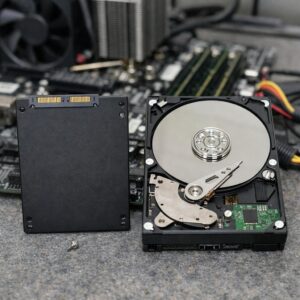
If storage performance is also a concern, compare the roles of the two upgrades in SSD vs HDD: Which Storage Option Should You Choose for Your PC?
Safe installation and what to do if the upgrade fails
Follow the manufacturer’s service procedure. Shut the computer down fully, disconnect external power and use appropriate static-electricity precautions. Do not touch module contacts, force retaining clips or work inside a device with a swollen battery or damaged power system.
If the new RAM is not detected or the computer will not start
- Turn the computer off and disconnect power before reopening it.
- Check that each module is fully seated and both retaining clips are secure.
- Verify that the modules are in the slots recommended by the manual.
- Reinstall the original memory. If the computer works again, compatibility or the new module is the likely issue.
- If the manual permits it, test one new module at a time to identify a faulty module or slot.
- Check the manufacturer’s support page for firmware requirements and approved memory configurations.
- Do not repeatedly force an unstable configuration. Return incompatible memory or seek qualified service.
After a successful installation, confirm the total in Task Manager and use the computer normally. Unexpected restarts, blue screens, application crashes or corrupted files after the change can indicate an unstable module or configuration.
Common RAM buying mistakes
- Buying by capacity alone: a large kit is useless if its DDR generation or form factor is incompatible.
- Assuming every laptop is upgradeable: many thin laptops use soldered memory.
- Choosing soldered 8 GB memory without considering future use: there may be no practical expansion path.
- Expecting RAM to fix every slowdown: CPU, storage, graphics, cooling and software problems can produce similar symptoms.
- Mixing modules based only on advertised speed: voltage, timings and internal organization can also affect compatibility.
- Ignoring application requirements: games and professional tools may publish workload-specific recommendations.
- Paying for extreme speed while buying too little capacity: capacity and compatibility usually matter more for everyday users.
- Installing a “RAM cleaner”: such software cannot create physical memory and may simply force useful cached data out of RAM.
Frequently asked questions
Is 8 GB enough for Windows 11?
It can run Windows 11 and basic applications, but multitasking can become restricted. For a primary computer that cannot be upgraded, 16 GB is generally the more flexible choice.
Is 16 GB enough for gaming?
It is a practical capacity for many modern games. Check each game’s recommended requirements, especially when using modifications, streaming software or several background applications.
Will 32 GB improve gaming performance?
It can reduce memory pressure when a game and its background applications exceed 16 GB. If everything already fits comfortably, the upgrade may produce little noticeable difference.
Is 64 GB excessive for gaming?
For gaming alone, it usually is. It may be justified when the same computer also handles virtual machines, large development projects, professional media or other memory-intensive work.
Can RAM replace an SSD upgrade?
No. RAM is temporary workspace, while an SSD stores Windows, applications and files. If memory capacity is already adequate, replacing a mechanical system drive with an SSD can have a larger effect on startup and loading times.
Is one 16 GB module better than two 8 GB modules?
Two compatible modules may provide more bandwidth on supported systems. One 16 GB module may preserve an empty slot for expansion. Check the motherboard layout, integrated-graphics needs and future upgrade plan.
Can DDR5 be installed in a DDR4 computer?
No. DDR4 and DDR5 are physically and electrically different. The motherboard and processor must support the installed generation.
Why does Windows show less usable RAM than installed?
Some memory may be reserved for hardware, firmware or integrated graphics. A small difference can be normal; a large unexpected difference should be investigated.
Should you upgrade RAM or replace the computer?
Upgrade when compatible memory is affordable and the processor, storage, graphics and general condition of the computer still meet your needs. Replacement may be more practical when RAM is soldered or several major components are inadequate.
Final recommendation
Choose 8 GB for controlled basic use, 16 GB for most work, study and mainstream gaming, 32 GB for heavier gaming, creation, development and multitasking, and 64 GB or more only for a specific workload that can use it.
Before buying, reproduce your normal workload and check Available and Committed memory in Task Manager. If memory pressure coincides with the slowdown and closing a demanding application restores responsiveness, an upgrade is more likely to help. Then verify the exact DDR generation, form factor, capacity limit, slot arrangement and upgradeability of the computer.
Official resources consulted
- Microsoft Support: Windows 11 system requirements
- Microsoft Support: Tips to improve PC performance in Windows
- Microsoft Support: System configuration tools in Windows
- Intel: How to choose RAM for a gaming PC
- Intel: What is computer and laptop RAM?
- Intel Support: Shared memory used by integrated graphics
- Adobe: Premiere technical requirements
- Adobe: Photoshop desktop technical requirements

The Joma PC Editorial Team publishes practical guides about choosing computers, troubleshooting PC problems, software, online security, and everyday computer use. Articles are edited for clarity, factual accuracy, and practical usefulness.